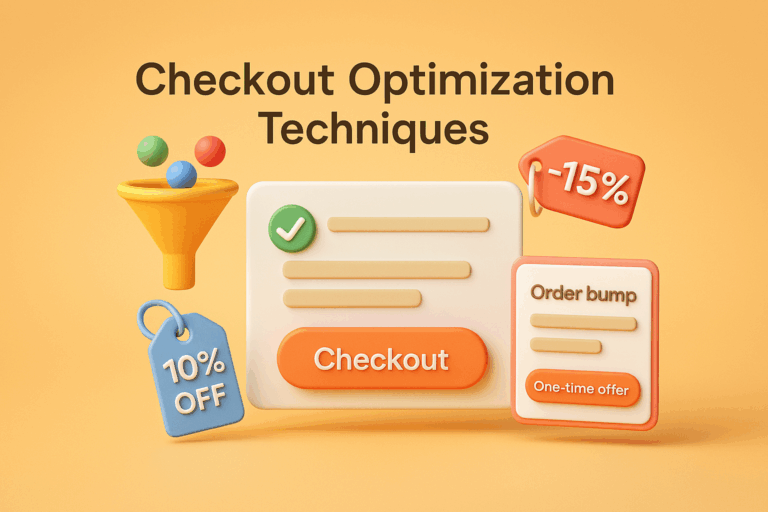
A Guide to Making a Faster & Better WooCommerce Checkout

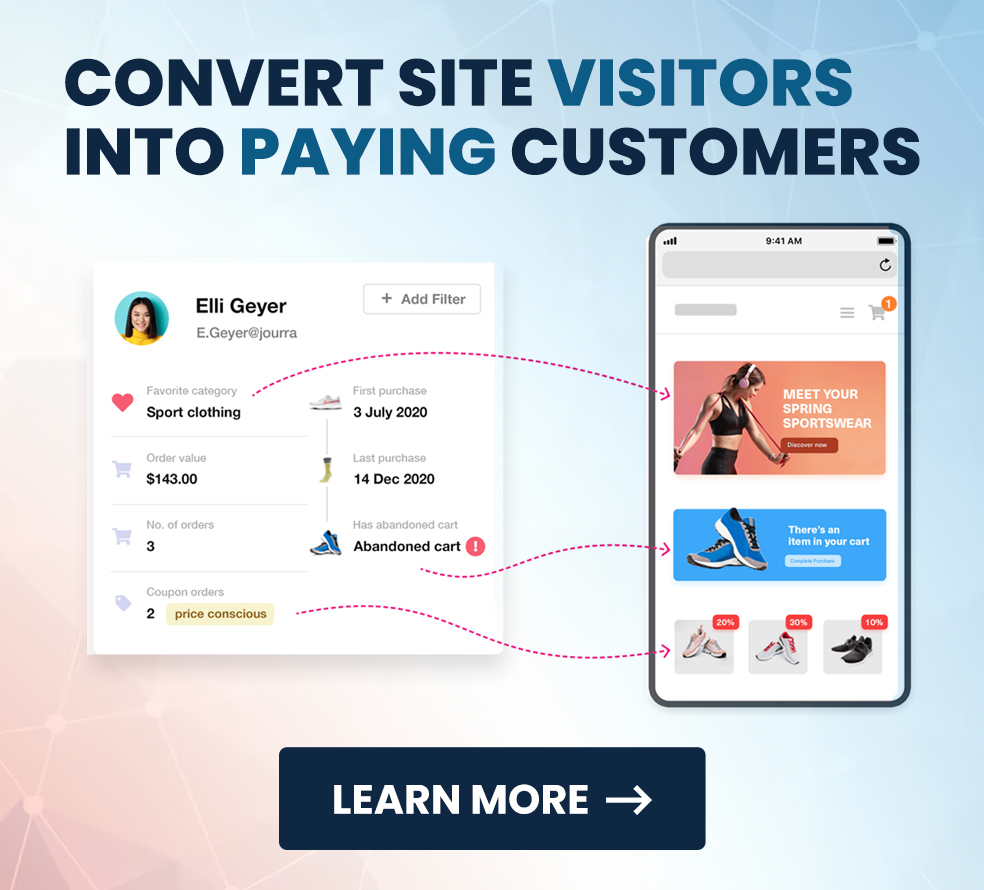
When it comes to running a successful online store, the checkout process can make or break your sales. I’ve seen countless businesses struggle because their checkout page isn’t optimized, leading to abandoned carts and frustrated customers. With WooCommerce, you’ve got the tools to create a seamless and user-friendly checkout experience that keeps shoppers coming back.
WooCommerce checkout isn’t just about processing payments; it’s about building trust and ensuring convenience. From customizing fields to integrating payment gateways, there are endless ways to tailor the checkout process to fit your business. If you’re ready to boost conversions and improve customer satisfaction, understanding WooCommerce checkout is the first step.
What Is WooCommerce Checkout?
WooCommerce checkout is a feature in the WooCommerce plugin for WordPress that facilitates the final stage of online shopping, where customers provide billing details, select payment methods, and confirm orders. The checkout flow is designed to guide customers smoothly through these steps. It’s customizable, allowing businesses to tailor the process to suit their needs.
This checkout system integrates seamlessly with various payment gateways like PayPal, Stripe, and others. It provides flexibility to support multiple currencies and ensure secure transactions, essential for global businesses or those targeting diverse markets.
Customization options include adding or removing fields, optimizing layouts, and enabling guest checkout. These features enhance user experience and reduce friction, increasing the likelihood of customers completing their purchases by streamlining the WooCommerce checkout process.
Introduction to WooCommerce Checkout
WooCommerce checkout is a crucial aspect of an e-commerce store, as it is the final step in the purchasing process. A well-designed checkout page can significantly impact the conversion rate and overall customer experience. The checkout page is where customers provide their billing details, select their preferred payment method, and confirm their orders. Ensuring this process is smooth and intuitive can make the difference between a completed sale and an abandoned cart. In this section, we will explore the importance of the WooCommerce checkout page and its components.
Definition of WooCommerce Checkout
The WooCommerce checkout is the final step in the online shopping process where customers enter their payment and shipping information to complete their purchase. This checkout page is a critical component of an e-commerce website, as it directly affects the conversion rate and customer satisfaction. A well-designed WooCommerce checkout page can streamline the payment process, reduce cart abandonment rates, and increase sales. By optimizing the checkout experience, businesses can ensure a smooth and efficient transaction process, ultimately enhancing customer loyalty and boosting revenue.
Key Features of WooCommerce Checkout
WooCommerce checkout provides essential features to create a seamless and conversion-focused checkout experience. Its flexibility and scalability cater to diverse business needs.
Customizable Checkout Forms
WooCommerce allows customization of checkout forms to match specific business requirements. I can add, remove, or rearrange fields to simplify the process. For example, removing unnecessary fields like company name shortens the form and reduces checkout time. Field labels and placeholders can also be personalized to enhance clarity. Additionally, the WooCommerce checkout page template can be customized to better align with branding and usability needs. A checkout field editor can be used to customize fields further, providing more control over the checkout process.
Multiple Payment Gateways
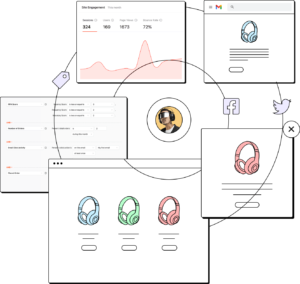
WooCommerce integrates with over 100 payment gateways, including PayPal, Stripe, and Square, to offer secure and convenient payment options. I can enable support for digital wallets like Apple Pay and Google Pay, ensuring customers have a variety of methods to complete transactions. These integrations make cross-border transactions easier by supporting multiple currencies and localized payment options. Additionally, offering a free shipping method can serve as a strategic incentive to increase customer spending during the checkout process.
Mobile-Friendly Design
WooCommerce checkout is optimized for mobile responsiveness, ensuring a seamless experience across devices. Mobile checkout is crucial for providing a smooth transaction process on smartphones and tablets. Having a mobile-friendly interface means I can serve customers using smartphones or tablets without layout inconsistencies. Features like auto-fill for address fields improve usability on smaller screens.
Integration With WooCommerce Ecosystem
WooCommerce seamlessly integrates with its broader ecosystem, including plugins for shipping, taxes, and memberships. I can connect tools like WooCommerce Subscriptions to allow recurring payments or WooCommerce Bookings for appointment management. These integrations simplify operational workflows while enhancing the overall functionality of the checkout process. Enhancing the functionality and user experience of a WooCommerce store through seamless integrations is crucial for optimizing sales and conversions.
Understanding the Default WooCommerce Checkout Page
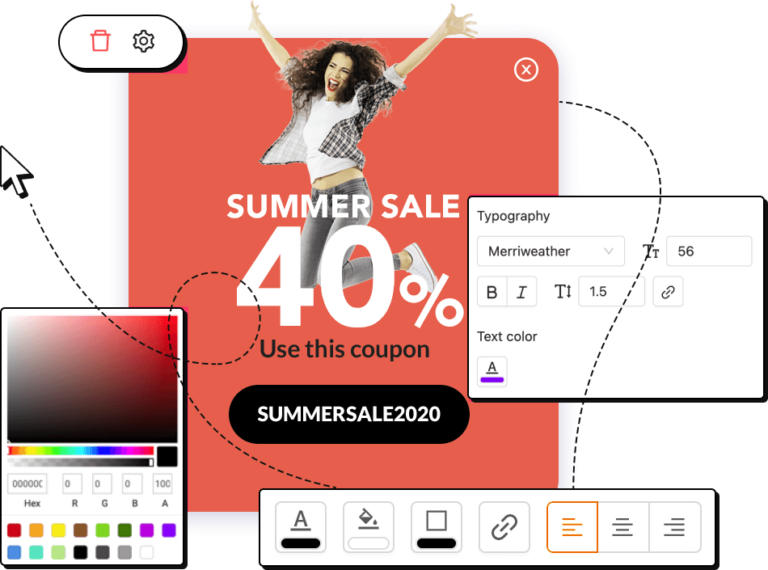
The default WooCommerce checkout page is a basic template that provides the necessary fields for customers to complete their purchases. However, it may not be optimized for conversions or tailored to your specific business needs. Understanding the default checkout page and its settings is essential to making informed decisions about customizations. By familiarizing yourself with the default layout and options, you can identify areas for improvement and implement changes that enhance the overall checkout experience.
Overview of the Default Checkout Page and Settings
The default WooCommerce checkout page consists of several sections, including the billing and shipping information, payment method, and order review. These sections are designed to capture all the necessary details to process an order. The page also includes various checkout settings, such as the option to enable or disable guest checkout, and the ability to customize the checkout form fields. For instance, you can choose to add, remove, or rearrange fields to better suit your business needs. Familiarizing yourself with these settings will help you make the most of the default checkout page and ensure it aligns with your business goals.
Customizing the Checkout Page Template and Its Components
Checkout customization of the page template and its components can significantly enhance the checkout experience and increase conversions. This can be achieved through various methods, including using custom code, plugins, and themes. For example, you might use custom coding to add unique fields that capture specific customer information or employ a plugin to streamline the checkout process. Additionally, selecting a theme that supports advanced customization options can help you create a more engaging and user-friendly checkout page. By tailoring the checkout page template to your business needs, you can create a seamless and efficient checkout experience for your customers.
Accessing and Editing the Template File
To access and edit the WooCommerce checkout page template file, navigate to your WordPress dashboard and go to Appearance > Editor. From there, select the theme you want to edit and click on the “woocommerce” folder. Inside this folder, you will find the “checkout” folder, which contains the template files for the checkout page. You can edit these files using a code editor or a plugin like WooCommerce Checkout Manager. This allows you to customize the checkout page template to better align with your store’s branding and functionality needs, ensuring a more tailored and user-friendly checkout experience.
Benefits of WooCommerce Checkout
WooCommerce checkout enhances the shopping experience by combining flexibility, security, and optimization. These benefits support businesses in delivering seamless and efficient transactions.
Enhanced User Experience
WooCommerce checkout prioritizes simplicity and usability. Customizable fields let businesses tailor the process to their audience’s needs, like removing unnecessary sections. Mobile optimization ensures shoppers on any device encounter the same smooth interface. Features like guest checkout remove barriers, encouraging faster purchases without requiring account registration.
Simplified Payment Processing
WooCommerce checkout integrates with over 100 payment methods and gateways such as PayPal, Stripe, and Apple Pay. This provides secure, versatile options for users preferring digital wallets or standard credit card payments. Multi-currency support simplifies transactions for international customers, making the process inclusive and globally accessible.
Increased Conversion Rates
Optimized WooCommerce checkout workflows reduce cart abandonment. Streamlined layouts and faster processing remove friction, encouraging customers to complete their purchases. With trust-building features like secure payment gateways, customers feel confident finalizing orders, directly contributing to growth in conversions. Implementing a one page checkout can further reduce cart abandonment and improve user satisfaction by enabling a quicker, more straightforward transaction flow.
Benefits of a One-Page Checkout Experience
A one-page checkout experience offers several benefits for online store owners. By simplifying the checkout process and reducing the number of steps customers need to take to complete their purchase, it can lead to a significant reduction in cart abandonment rates and an increase in conversions. Additionally, a one-page checkout experience can improve customer satisfaction by providing a seamless and efficient payment process. This streamlined approach minimizes distractions and keeps customers focused on completing their purchase, ultimately enhancing the overall checkout experience.
Challenges and Limitations
WooCommerce checkout offers significant benefits, but it’s not without challenges. Addressing these limitations is essential to ensure a smooth and efficient checkout process.
Setup Complexity for Beginners
Navigating the initial setup and checkout setup can feel overwhelming for those new to WooCommerce. Customizing fields, integrating payment gateways, and configuring tax settings require familiarization with WooCommerce’s interface. Beginners might struggle with finding the right plugins or understanding how to tailor the checkout flow without professional assistance. Additionally, using the checkout block can present challenges, especially when trying to add additional fields or switch to classic checkout options without delving into custom coding.
Potential Plugin Conflicts
WooCommerce relies heavily on plugins for added functionality, but not all plugins integrate seamlessly. Incompatible plugins, like outdated payment gateway extensions or poorly coded add-ons, can disrupt the checkout process or cause errors. Maintaining compatibility requires regular updates and careful selection of plugins that align with WooCommerce’s standards.
Security Concerns
Managing a secure checkout system is critical, especially since sensitive customer information is involved. Without proper implementation of SSL certificates or regular updates to address vulnerabilities, stores might expose customers to data breaches. Ensuring compliance with industry standards like PCI-DSS adds another layer of responsibility for store owners.
Cart and Checkout Blocks
Cart and checkout blocks are a new feature in WooCommerce, introduced with the block-based themes. These blocks provide a more flexible and customizable way to display the cart and checkout pages. However, they also have some limitations and requirements. Understanding how to effectively use these blocks can help you create a more dynamic and user-friendly checkout experience.
Understanding Cart and Checkout Blocks in WooCommerce
Cart and checkout blocks are used by default on block-based themes. They provide a more modern and flexible way to display the cart and checkout pages. These blocks allow for greater customization and can be easily rearranged to fit your store’s design. However, they also have some limitations, such as the inability to customize certain fields without creating a custom block. In this section, we will explore the basics of cart and checkout blocks and their limitations. By understanding these elements, you can better utilize them to enhance your WooCommerce store’s checkout process. Additionally, the checkout block editor offers further customization options for these blocks.
Top Plugins to Improve WooCommerce Checkout
Enhancing the WooCommerce checkout experience requires the right plugins. These tools simplify processes, improve usability, and increase the likelihood of successful transactions.
WooCommerce Checkout Field Editor
WooCommerce Checkout Field Editor lets me customize checkout fields effortlessly, providing extensive checkout field customization options. I can add, remove, or rearrange fields to optimize the form. For example, I might remove unnecessary address fields for digital products or add specific personalization fields for custom items. This plugin also allows conditional logic for fields, adapting the form based on the choices customers make. By refining the form’s layout and content, I streamline the checkout process and minimize cart abandonment.
One-Click Checkout Plugins
One-click checkout plugins, like WooCommerce Direct Checkout or Fast Cart, simplify the buying process. These plugins bypass unnecessary steps, letting customers finalize purchases with minimal clicks. For instance, when a repeat customer wants to buy a low-cost item quickly, the one-click option eliminates the cart page. This saves time, especially for mobile shoppers, enhancing the user experience and boosting conversions. Additionally, the one page checkout icon can transform any designated page into a streamlined checkout experience, making the purchasing process faster and more efficient. A quick checkout option further enhances this efficiency, ensuring a seamless and speedy transaction process.
Payment Gateway Add-Ons
Payment gateway add-ons integrate additional payment methods into WooCommerce, ensuring diverse and secure options. Plugins like Stripe for WooCommerce or PayPal Pro expand functionality by offering support for credit cards, Apple Pay, and Google Pay. Multi-currency support through specific add-ons makes transactions smoother for international users. By catering to varied customer preferences and enhancing security, I foster trust and convenience during the checkout process.
Tips for Optimizing WooCommerce Checkout
An optimized WooCommerce checkout improves customer experience and reduces cart abandonment. Implement targeted strategies to streamline, test, and enhance the process.
Streamline the Checkout Process
Checkout optimization simplifies the process, lowering friction and encouraging customers to complete their purchases. I remove unnecessary fields, focus on essential ones like shipping and payment details, and allow guest checkout to avoid forcing account creation. Offering multiple payment options like PayPal or credit cards minimizes barriers for diverse customer preferences. Utilizing plugins like WooCommerce Checkout Field Editor helps align the form with business needs. Additionally, using different templates like the pricing table can optimize the presentation of products on the checkout page.
Ensure Mobile Responsiveness
Mobile optimization provides a seamless experience for shoppers using smartphones or tablets. I ensure the layout adapts to smaller screens, prioritizing clear navigation, large buttons, and easily editable fields. Checking for fast-loading pages and minimal distractions optimizes performance across mobile devices. Tools like Google Mobile-Friendly Test identify and address issues impacting user experience on smaller screens.
Test and Monitor for Performance
Regular testing ensures the checkout performance is efficient under different conditions. I conduct usability testing to identify bottlenecks, including long loading times or unclear instructions. By enabling logging and monitoring tools, I analyze bounce rates and identify error-prone steps. Testing across browsers and devices ensures compatibility, while A/B testing optimizes design decisions for improved conversion rates. Tools like Google Analytics or WooCommerce’s built-in reporting suite assist with tracking and improvements.
Creating a Pricing Table for Transparency and Trust
A pricing table is an essential element of a WooCommerce checkout page, as it provides transparency and trust to customers. To create a pricing table, you can use a plugin like WooCommerce Pricing Table or Table Rate Shipping. These plugins allow you to create a table that displays the prices and shipping rates for different products and shipping zones. You can also customize the table to match your store’s branding and design. By clearly presenting pricing information, you help customers make informed decisions, which can lead to increased trust and higher conversion rates.
Creating Direct Checkout Links for Products
Direct checkout links allow customers to bypass the cart and go directly to the checkout page. This can be particularly useful for products with a simple pricing structure that do not require additional information from the customer. To create direct checkout links, you can use a plugin like WooCommerce Direct Checkout or Direct Checkout for WooCommerce. These plugins provide a shortcode that you can use to create a direct checkout link for a specific product. By streamlining the checkout process, direct checkout links can enhance the customer experience and potentially increase sales.
Why WooCommerce Checkout Matters for Your Business
A smooth checkout process is critical to e-commerce success, highlighting the checkout importance for your business. Research shows that a complicated or lengthy checkout leads to high cart abandonment rates. WooCommerce checkout ensures a frictionless experience by allowing store owners to customize every aspect of the process. From enabling guest checkout to integrating trusted payment gateways, optimizing your checkout page can significantly impact conversion rates and customer satisfaction.
Common Checkout Problems and How to Fix Them
Despite WooCommerce’s flexibility, many store owners face common checkout issues that deter customers. Some of these challenges include slow-loading pages, unexpected shipping costs, or forced account creation. To counter these issues:
- Simplify the checkout fields – Remove unnecessary form fields and only ask for essential information.
- Enable guest checkout – Avoid forcing users to register before making a purchase.
- Optimize for speed – Slow checkout pages frustrate users, so ensure fast load times by optimizing images and using a reliable hosting provider.
- Provide multiple payment options – Customers have different preferences, so offering PayPal, credit/debit cards, and digital wallets can improve conversions.
Best Practices for WooCommerce Checkout Optimization
Maximizing WooCommerce checkout performance requires strategic enhancements and understanding checkout best practices. Here are some best practices:
- Use a one-page checkout – Reducing the number of steps to complete a purchase simplifies the process and increases conversions.
- Implement trust signals – Display security badges and clear refund policies to reassure customers.
- Enable auto-fill for returning customers – Speed up the process by storing previous checkout details securely.
- Test different layouts – A/B testing different checkout designs can help identify the most effective setup for your store.
Security and Compliance in WooCommerce Checkout
Checkout security is a top priority when processing customer transactions. WooCommerce provides built-in security measures, but store owners should also:
- Use SSL encryption – Secure transactions with HTTPS to protect customer data.
- Stay PCI-DSS compliant – Ensure that your payment gateways comply with security standards.
- Regularly update WooCommerce and plugins – Outdated software can lead to vulnerabilities.
- Enable two-factor authentication (2FA) – Protect your admin area from unauthorized access.
Conclusion
A well-optimized WooCommerce checkout can make all the difference in turning visitors into loyal customers. By leveraging its customization options, seamless integrations, and user-friendly features, businesses can create a checkout process that’s both efficient and secure. While challenges like setup complexity and plugin conflicts exist, the right tools and strategies can help overcome these hurdles. Prioritizing a smooth checkout experience isn’t just about reducing cart abandonment—it’s about building trust and delivering convenience that keeps customers coming back.
Frequently Asked Questions About WooCommerce Checkout and Convesio
1. Why is optimizing WooCommerce checkout important?
A seamless checkout experience reduces cart abandonment, improves user satisfaction, and increases conversions. A well-optimized WooCommerce checkout keeps the process simple, secure, and mobile-friendly, ensuring customers complete their purchases smoothly.
2. What are the most common reasons for abandoned carts?
Some of the top reasons customers abandon their carts include unexpected fees, a complicated checkout process, slow page load speeds, and limited payment options. Optimizing your WooCommerce checkout by streamlining the process and integrating multiple payment gateways can help reduce cart abandonment.
3. How does Convesio improve WooCommerce checkout performance?
Convesio provides high-speed, auto-scaling WooCommerce hosting that eliminates checkout slowdowns and ensures smooth transactions, even during peak traffic. With built-in security, expert support, and automated performance optimizations, Convesio keeps your WooCommerce checkout running efficiently.
4. What payment gateways can I use with WooCommerce?
WooCommerce integrates with over 100 payment gateways, including Stripe, PayPal, Square, and Apple Pay. These options allow businesses to accept a variety of payment methods, improving convenience for customers worldwide.
5. How can I make my WooCommerce checkout mobile-friendly?
To optimize WooCommerce checkout for mobile users, ensure the design is responsive, minimize the number of fields, enable autofill, and use larger buttons for easy navigation. Hosting on Convesio further enhances performance, ensuring fast-loading checkout pages on all devices.
6. What security measures should I take for WooCommerce checkout?
To protect customer data and secure transactions, implement SSL encryption, enable PCI-DSS-compliant payment gateways, regularly update WooCommerce and plugins, and use two-factor authentication for administrative access. Convesio’s hosting includes advanced security features to safeguard your store.
7. Can I customize my WooCommerce checkout page?
Yes, WooCommerce allows full customization of checkout forms, including adding or removing fields, modifying layouts, and implementing a one-page checkout. Using plugins like WooCommerce Checkout Field Editor can further enhance personalization.
8. What is Convesio’s role in checkout optimization?
Convesio provides a fully optimized WooCommerce hosting solution that ensures fast performance, security, and reliability. By eliminating slow load times, plugin conflicts, and downtime risks, Convesio helps businesses create a seamless, conversion-friendly checkout experience.
9. How does Convesio handle high-traffic sales events?
Convesio’s auto-scaling technology automatically adjusts server resources to handle traffic spikes, ensuring your WooCommerce checkout remains fast and responsive even during peak sales periods like Black Friday or holiday promotions.
10. How do I get started with Convesio for WooCommerce checkout optimization?
Switching to Convesio is simple—just check our pricing and sign up for a hosting plan that fits your store’s needs. Our team of WooCommerce experts will help you migrate your site and optimize your checkout for peak performance and conversions.