Two-Factor Authentication Is Coming to Every Convesio Account
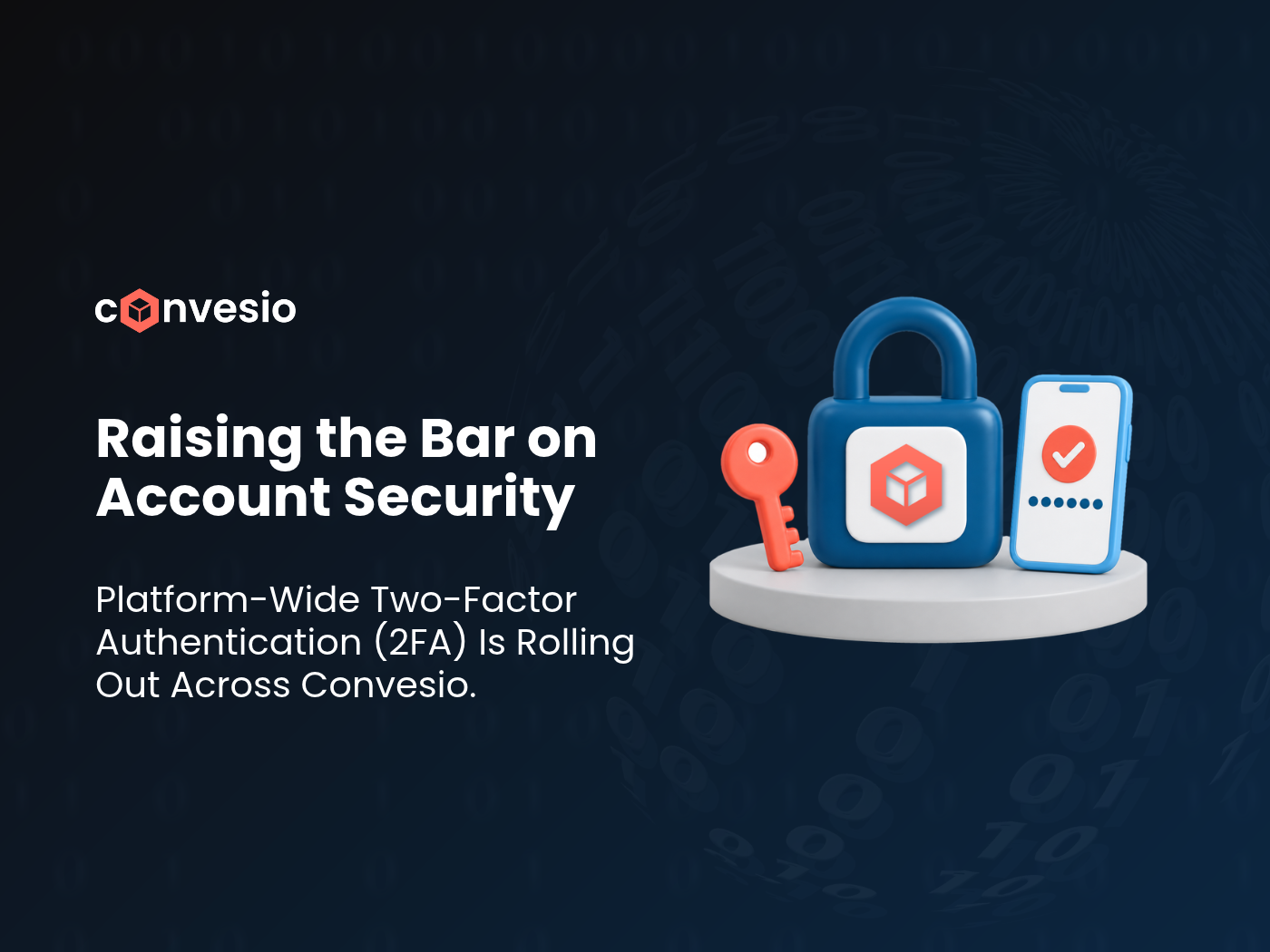
Two-factor authentication (2FA) will be required to sign in to the Convesio platform. You can turn it on today, and it takes about a minute.
Let’s be clear up front: nothing is wrong. No Convesio account has been compromised. This is a proactive upgrade, and we’re giving everyone time to set it up on their own schedule.
Why we’re making 2FA standard
Passwords get reused, phished, and leaked in breaches at other companies. Across the web, automated login attempts that test those passwords keep climbing. You can’t control what happens to a password once it’s out of your hands.
Two-factor authentication closes that gap. After your password, you enter a six-digit code from an authenticator app on your phone. Without your phone, a password alone won’t get anyone in.
We’ve supported 2FA for years and required it for clients with HIPAA hosting and added security needs. Making it standard for everyone is the natural next step. Your Convesio account is the control center for your sites, your store, and your payments. It deserves the same protection.
What changes, and what doesn’t
What changes: Signing in to the Convesio platform will ask for a code from your authenticator app after your password. ConvesioHost and ConvesioPay share one login, so one setup covers both. If you sign in with Google or GitHub, you’ll enter your Convesio code after that step.
What doesn’t change:
- Your WordPress admin logins
- SFTP and SSH access
- API keys and integrations
- Your sites, storefronts, and checkouts
The timeline
- Today: 2FA is available to everyone. If you haven’t turned it on, you’ll see a prompt next time you sign in.
- 2FA becomes required for every user on every Convesio account.
Already using 2FA? You’re set. No action needed.
How to turn on two-factor authentication
You’ll need an authenticator app on your phone. Google Authenticator, Microsoft Authenticator, or a password manager with one-time codes all work.
- Sign in to the Convesio console and click your initials in the top right.
- Choose Authentication, then click Enable.
- Scan the QR code with your authenticator app.
- Enter the six-digit code from your app and click Enable.
- Save your ten backup codes somewhere safe, like your password manager.
Prefer to watch? Our two-factor authentication setup guide includes a one-minute video.
If you lose your phone
Sign in with one of your backup codes. Each one works once. If you’ve lost both your phone and your backup codes, contact our support team. We’ll verify your identity and get you back in.
For agencies and teams
Every user on an account will need their own 2FA by [ENFORCEMENT DATE]. If you manage client accounts or a team, share the setup guide now so no one is caught off guard at sign-in.
Questions?
Our support team is here to help, with real humans and fast replies. Turn on 2FA today, and you won’t have to think about it again.