Two-factor authentication (2FA) adds a second check when you sign in to the Convesio console. After your password, you enter a six-digit code from an authenticator app on your phone. If someone gets your password, they still can’t get in without your phone.
Setup takes about a minute.
What you’ll need
- Access to your Convesio console account
- A phone with an authenticator app. Any app that scans a setup QR code works, for example Google Authenticator, Microsoft Authenticator, or a password manager with one-time codes built in.
- A safe place to keep your backup codes, like a password manager
Turn on 2FA
1. Open your user menu Sign in to the console. Click your avatar (your initials) in the top right corner.
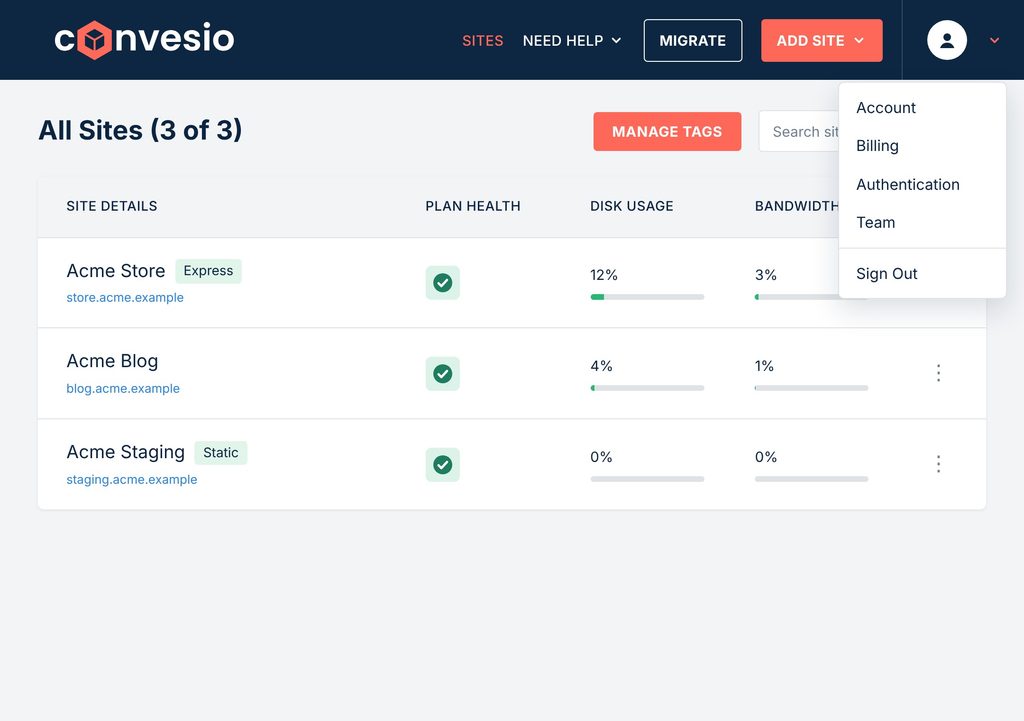
2. Select Authentication The Two-Factor Authentication page opens.
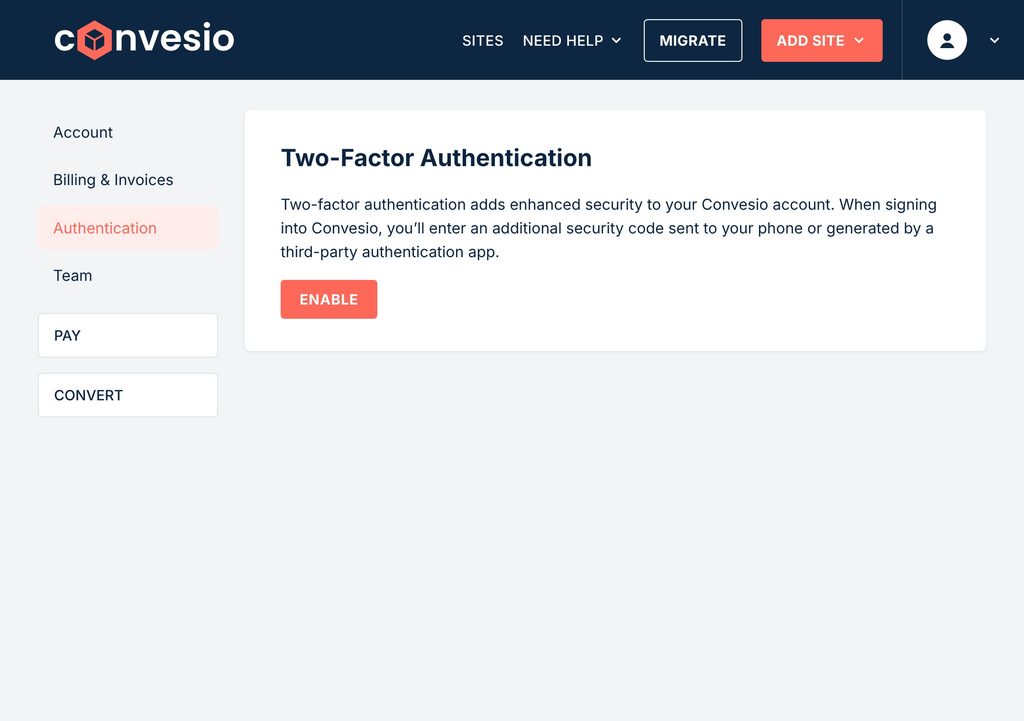
3. Click Enable The Enable Two-Factor Authentication window opens with a QR code.
4. Get an authenticator app If you don’t have one yet, download one from the App Store or Google Play.
5. Scan the QR code In your authenticator app, tap add (or +) and scan the QR code on screen. Your app adds a Convesio entry and starts showing a six-digit code that changes every 30 seconds.
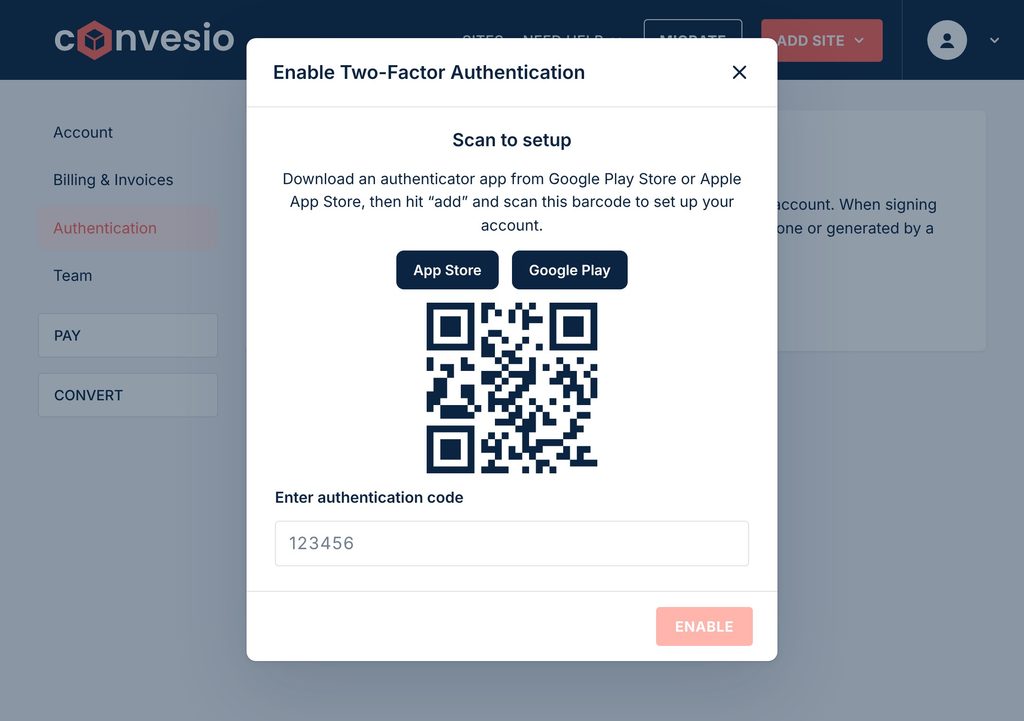
Note: Don’t share or screenshot this QR code. Anyone who scans it can generate your sign-in codes.
6. Enter the code Type the six-digit code from your app into Enter authentication code, then click Enable.
You’ll see a confirmation: Two-factor authentication is now enabled.
7. Save your backup codes Convesio shows you ten backup codes. Each one works once and lets you sign in if you lose access to your authenticator app.
Important: These codes are shown only once. Copy them (use the copy icon) and store them somewhere safe before you continue.
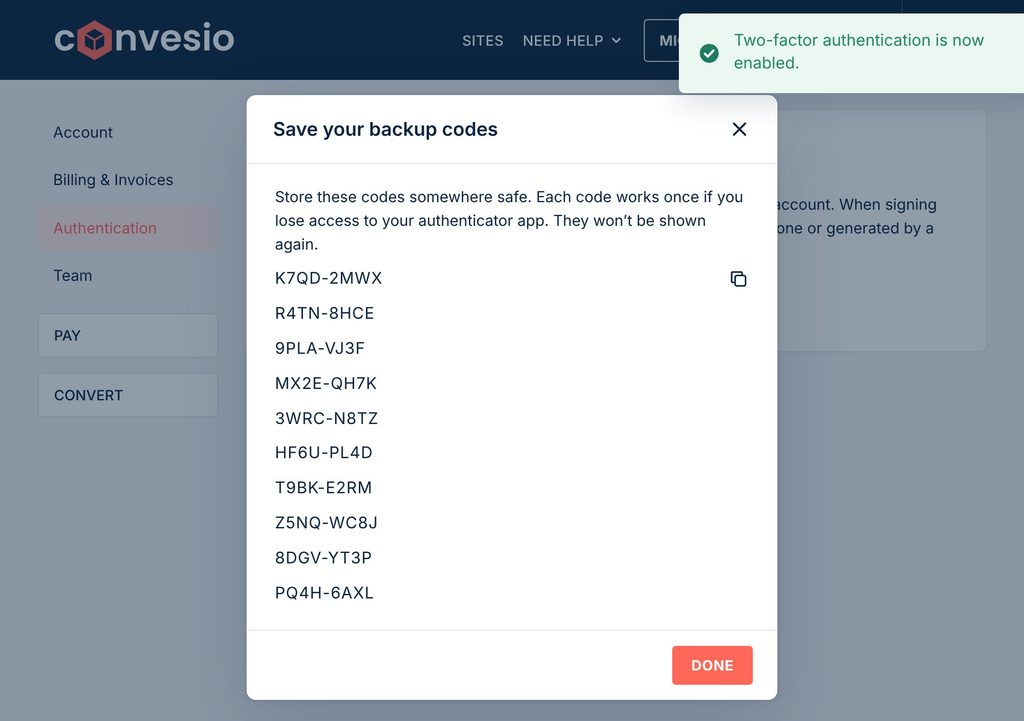
8. Click Done The button on the Authentication page now reads Disable. That means 2FA is on.
What to expect next
The next time you sign in, Convesio asks for a code from your authenticator app after your password.
Common questions
What if I lose my phone? Sign in with one of your backup codes instead of an app code. Each code works once.
What if I lose my phone and my backup codes? Contact support.
Does 2FA apply if I sign in with Google or GitHub? Yes. You may see Google’s 2FA or GitHub’s 2FA as part of their sign-in process, then you will need to enter the Convesio 2FA code.