This guide walks you through connecting CheckoutChamp (or Konnective) to your ConvesioPay account. The process takes about 5 minutes and does not require manual API keys — ConvesioPay provisions the connection automatically when you log in.
Before you start
You will need:
- An active ConvesioPay account (merchant account active and verified)
- Your ConvesioPay email address and password — verify these by logging into convesiopay.com before starting
- Admin access to your CheckoutChamp or Konnective account
- Your store’s full domain URL (e.g.,
https://yourstore.com)
Before you connect: ConvesioPay runs on Adyen’s global infrastructure — see Adyen Payment Methods: What’s Supported and What’s Not if you’re also configuring payment methods for this integration. Setting up other platforms too? See all ConvesioPay integrations →
Step 1: Find ConvesioPay in Gateway Integrations
- In CheckoutChamp or Konnective, go to Gateways → Gateway Integrations in the left sidebar.
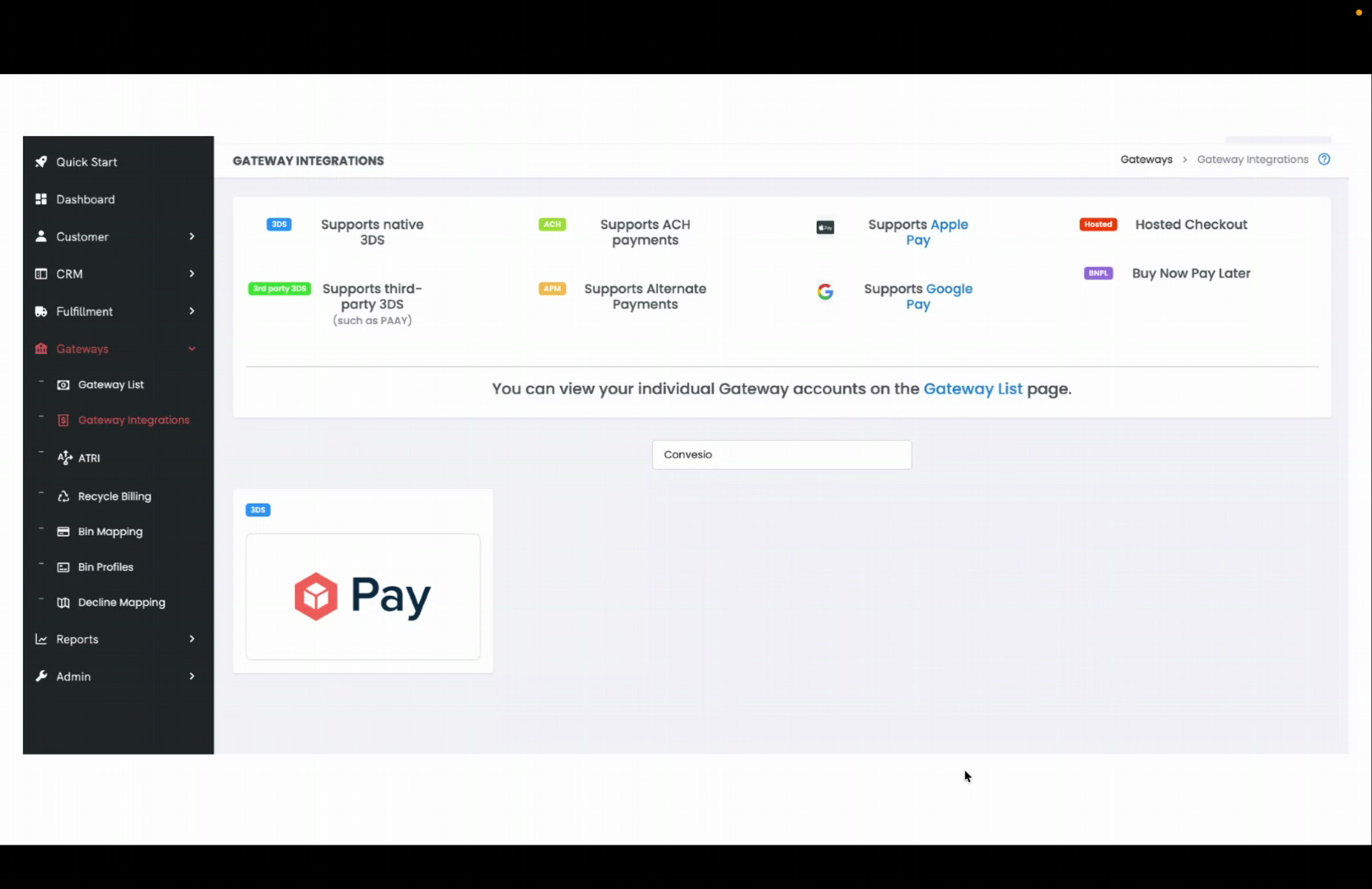
- In the search box, type
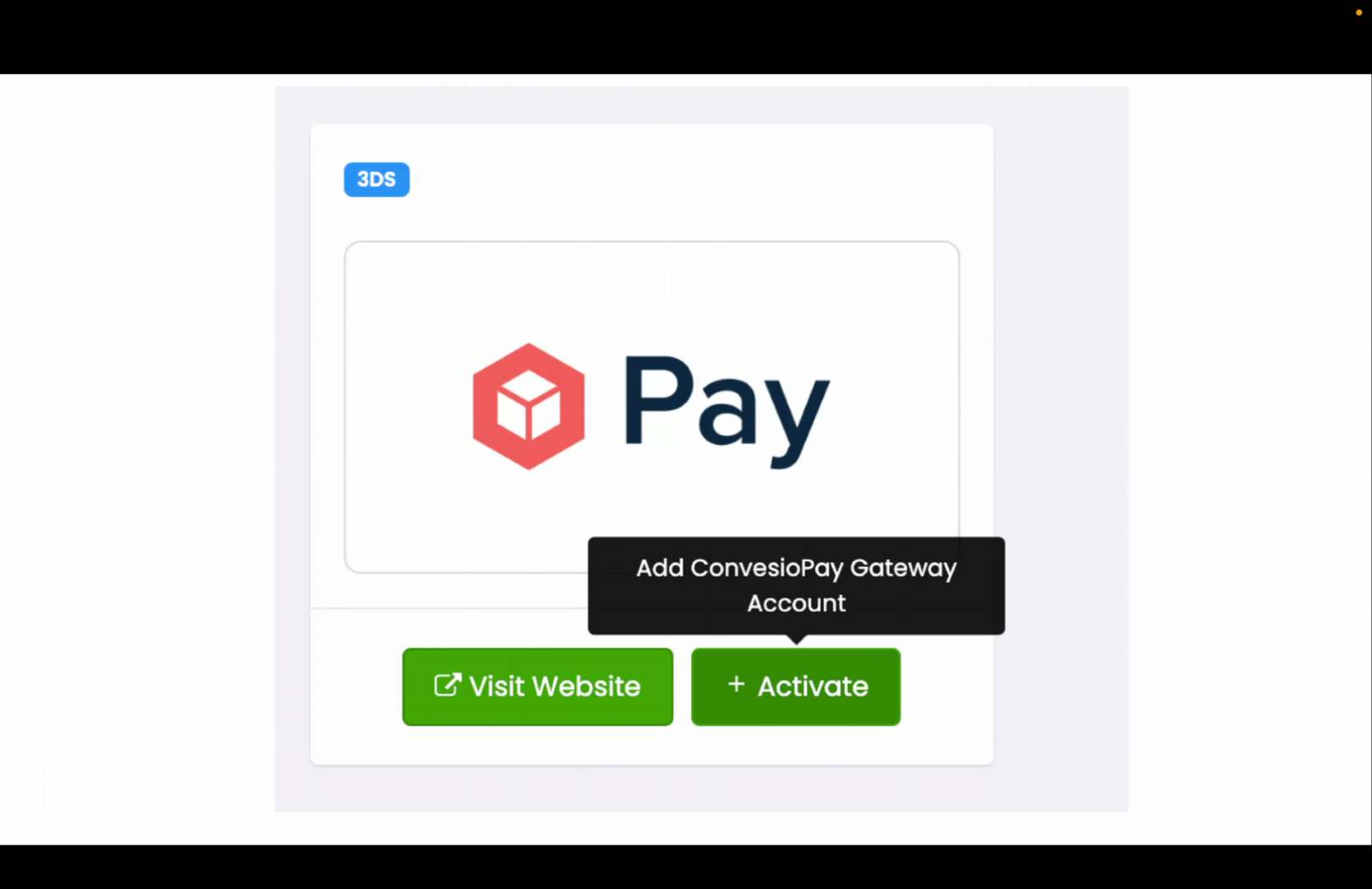
Convesio. The ConvesioPay tile will appear in the list. - Click the tile. Two buttons appear: Visit Website and Activate.
- Click Activate.
Step 2: Create the gateway
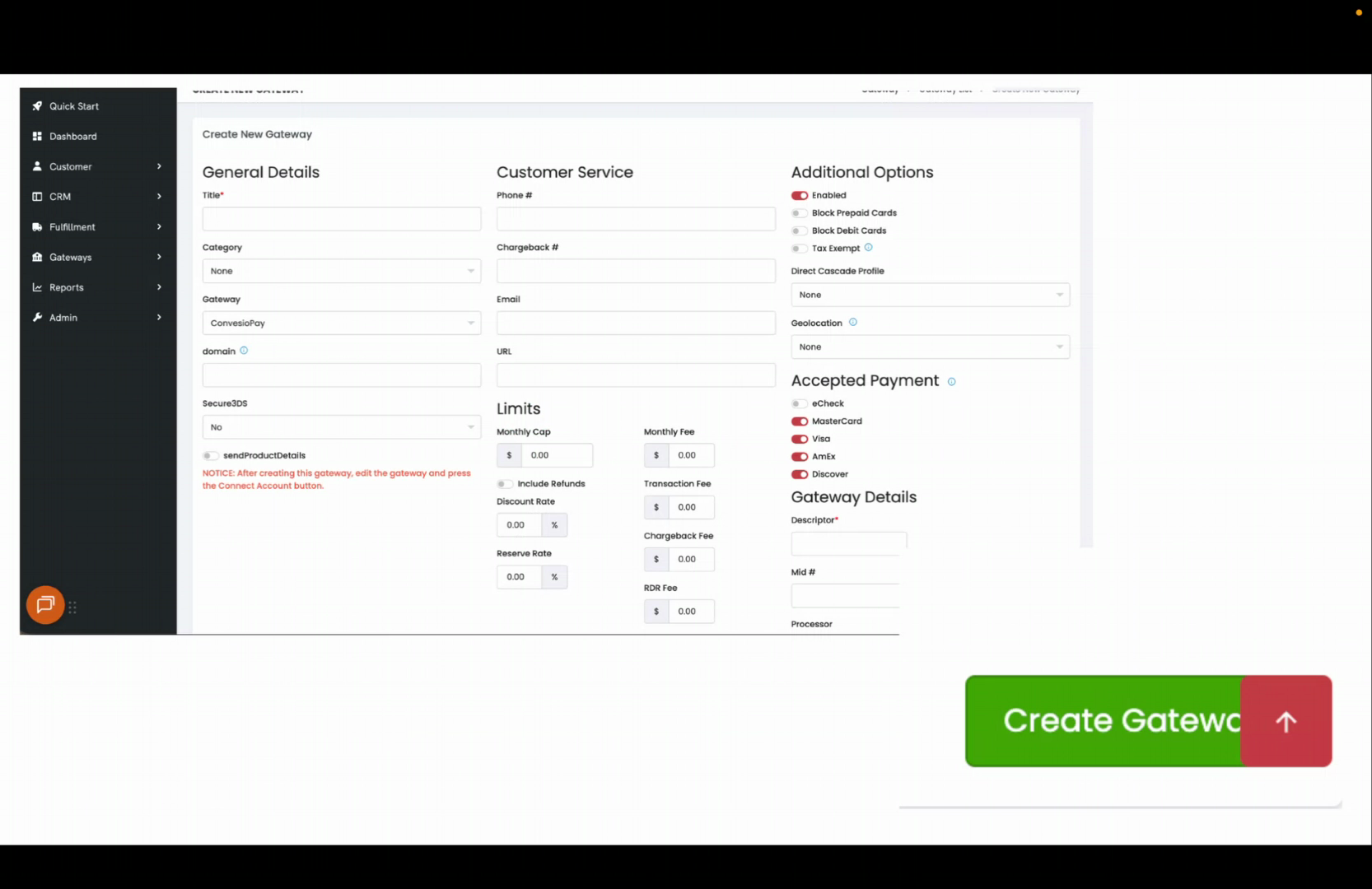
After clicking Activate, you are taken to the Create New Gateway page.
⚠️ Important: You must create the gateway first, then connect it to ConvesioPay as a separate step. Do not skip ahead — the connection option only appears after the gateway exists.
Fill in these required fields:
- Title — Give this gateway a recognizable name (e.g., “ConvesioPay”)
- domain — Enter your store’s full URL, including
https://(e.g.,https://yourstore.com) - Descriptor — Found in the Gateway Details column on the right. Required — enter a short descriptor for your transactions.
You will see a red notice on the page: “After creating this gateway, edit the gateway and press the Connect Account button.” This is expected — you will do that in the next step.
Leave all other fields at their defaults. Scroll to the bottom and click Create Gateway.
Step 3: Edit the gateway and connect your ConvesioPay account
- After the gateway is created, you are taken to your Gateway List.
- Find the gateway you just created. Click the pencil (edit) icon on the far right of its row.
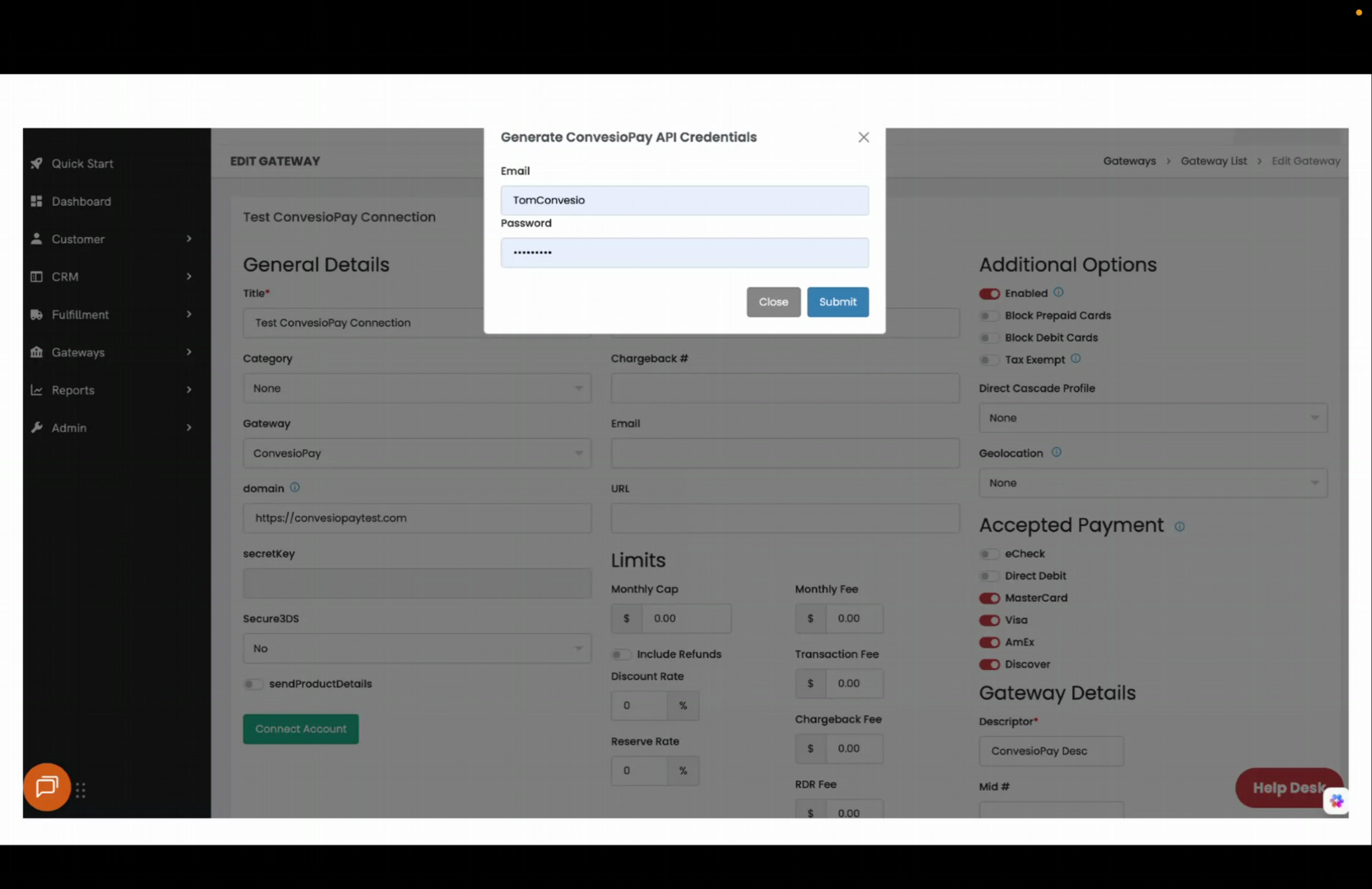
- On the Edit Gateway screen, scroll to the bottom left and click the green Connect Account button.
- A popup appears titled “Generate ConvesioPay API Credentials”.
⚠️ Do not use the pre-filled credentials. CheckoutChamp may auto-populate this popup with your CheckoutChamp login — these are the wrong credentials. Clear the fields and enter your ConvesioPay email address and password instead. If you enter the wrong credentials, you will receive a generic error with no explanation.
- Enter your ConvesioPay Email and Password, then click Submit.
Step 4: Confirm the connection in ConvesioPay
After clicking Submit, ConvesioPay automatically creates a Connected Integration on its side. No manual API keys or secret key configuration is required.
Note: The
secretKeyfield in CheckoutChamp will appear greyed out — this is expected and correct. ConvesioPay manages the API credentials automatically; you do not need to fill that field in manually.
To verify the connection:
- Log into your ConvesioPay account at convesiopay.com.
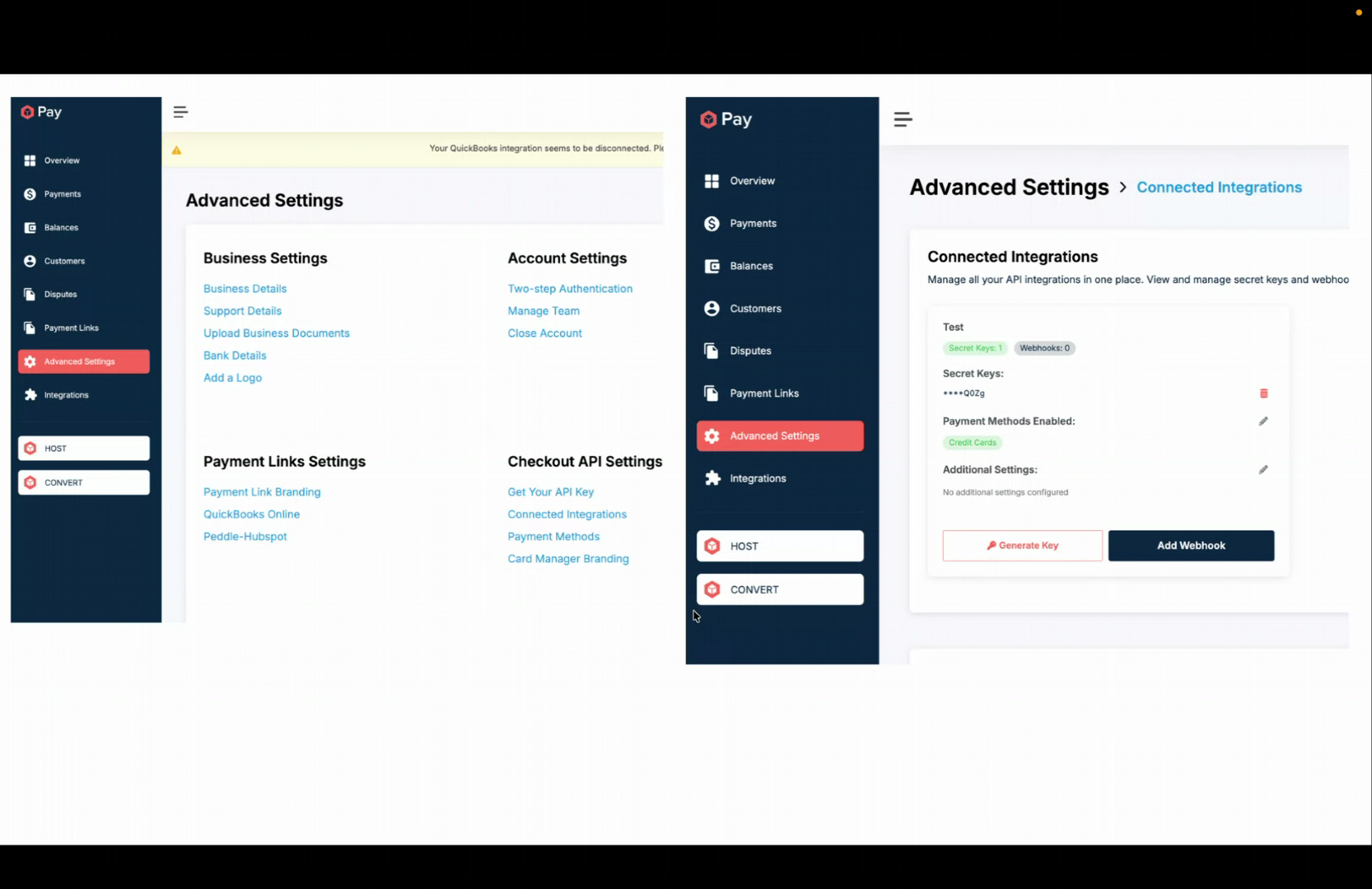
- Go to Advanced Settings → Connected Integrations.
- You will see a new entry with a name that includes “checkout champ” followed by a unique identifier. This confirms the connection is live.
Step 5: Test the integration
Run a test transaction to confirm payments are processing correctly.
If anything goes wrong, use the chat icon in the bottom right of ConvesioPay to reach our support team, or visit convesio.com/support.
Comparing ConvesioPay against other processors before going further? See how it stacks up against Stripe and Authorize.net.