Use WS Form with ConvesioPay to collect payments through WordPress forms — deposits, service bookings, registrations, donations, and one-time payments.
Before you start
You will need:
- A ConvesioPay account
- A WordPress site with WS Form installed and active
- Admin access to WordPress
- A WS Form license that supports payment integrations (check your WS Form plan)
Step 1: Download the ConvesioPay plugin for WS Form
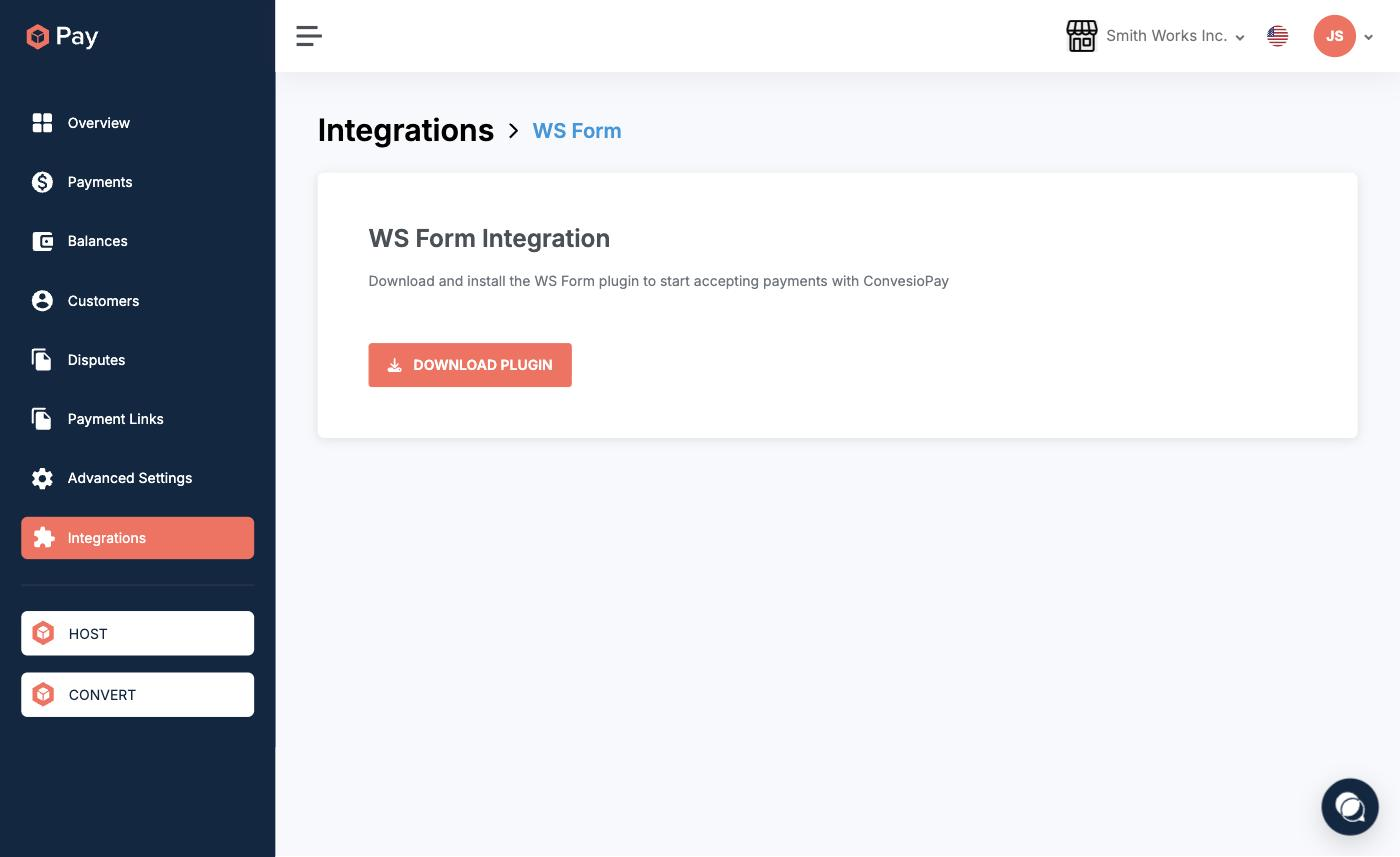
- Log in to your ConvesioPay dashboard.
- Go to Integrations.
- Find WS Form and open it.
- Click Download Plugin.
Step 2: Install and activate the plugin in WordPress
- In WordPress, go to Plugins → Add New.
- Click Upload Plugin.
- Select the
.zipfile downloaded in Step 1. - Click Install Now, then Activate.
Step 3: Connect ConvesioPay in WS Form settings
- In WordPress, go to WS Form → Settings.
- Open the Payments or Integrations section.
- Select ConvesioPay.
- Enter your ConvesioPay credentials:
- Client Key
- API Key
- Secret Key
- Find these in ConvesioPay under Advanced Settings → Get Your API Key (or Connected Integrations).
- Save changes.
Step 4: Add a payment action to your form
- In WordPress, go to WS Form → Forms and open or create a form.
- Add the fields you need (name, email, amount, etc.).
- In the form’s Actions panel, add a ConvesioPay Payment action.
- Map your form fields to the payment action:
- Amount field → payment amount
- Email field → customer email
- Save the form.
Step 5: Publish and test
- Embed the form on a test page using the WS Form shortcode or block.
- Submit a test payment using a small amount.
- Confirm:
- WS Form shows the submission in its entries
- Payment appears in ConvesioPay’s transaction log
- Customer-facing confirmation (success message, redirect, or email) works correctly
Troubleshooting
Form submits but payment doesn’t process
- Confirm the ConvesioPay plugin is activated
- Confirm a Payment action is added to the form and mapped to the correct amount field
- Verify the amount field contains a numeric value
Authentication or connection errors
- Re-copy credentials from ConvesioPay (watch for extra spaces)
- Disable and re-enable the integration in WS Form settings
How to disconnect ConvesioPay
- Remove the ConvesioPay Payment action from any forms that use it.
- In WS Form → Settings, remove the ConvesioPay credentials.
- (Optional) Deactivate the ConvesioPay WS Form plugin in WordPress.