Connect SwissCRM with ConvesioPay to accept payments and sync payment activity to your CRM workflows. The connection is configured from your SwissCRM admin — ConvesioPay provides the credentials.
Before you start
You will need:
- A ConvesioPay account
- A SwissCRM account (sign up at swisscrm.com if you don’t have one)
- Admin access to SwissCRM with permissions to manage integrations
Step 1: Access the SwissCRM integration in ConvesioPay
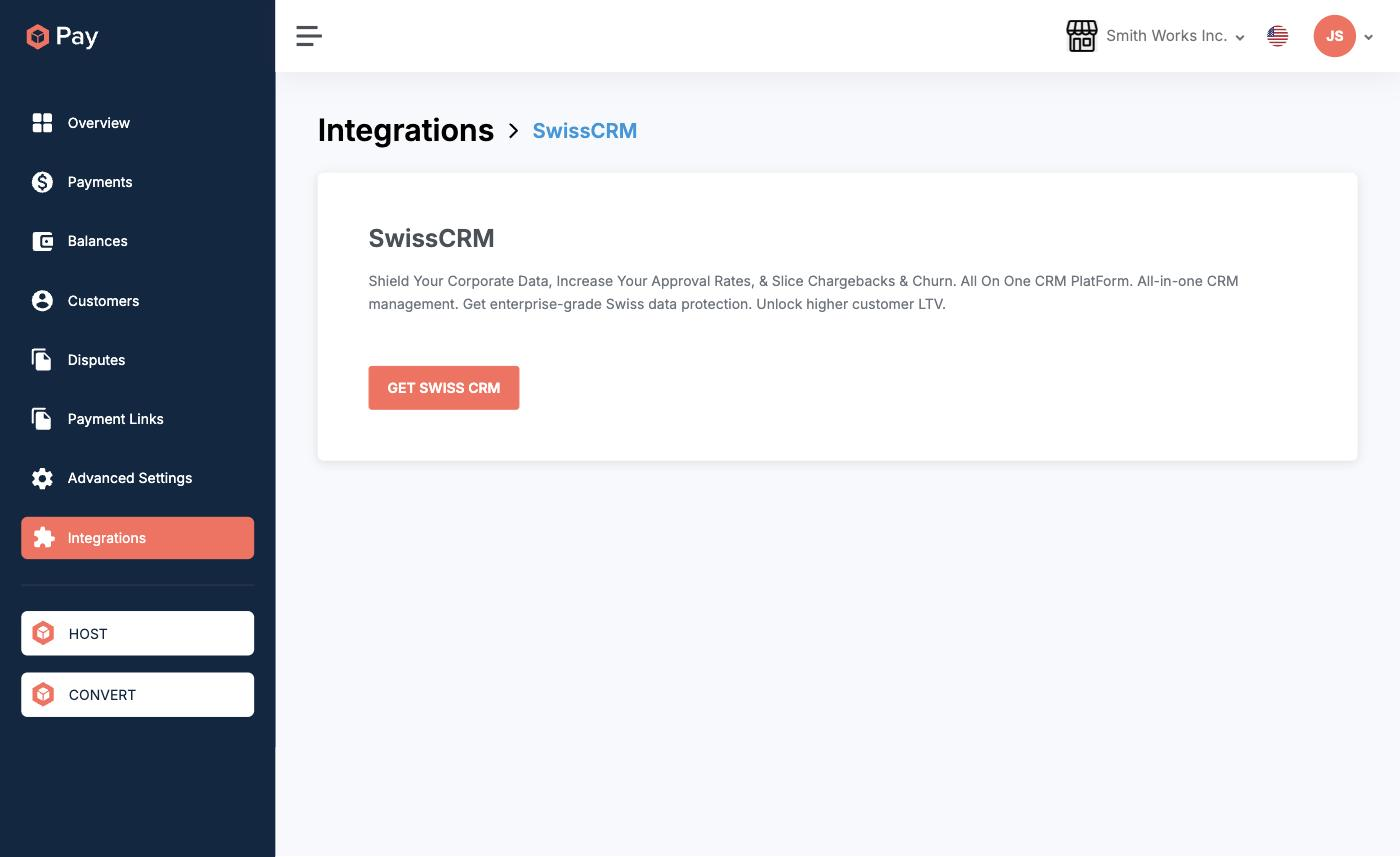
- Log in to your ConvesioPay dashboard.
- Go to Integrations.
- Find SwissCRM and open it.
- Click Get Swiss CRM to open your SwissCRM account.
Step 2: Get your ConvesioPay credentials
- In ConvesioPay, go to Advanced Settings → Get Your API Key (or Connected Integrations).
- Copy your Client Key, API Key, and Secret Key.
Step 3: Add ConvesioPay in SwissCRM
- In your SwissCRM admin, go to Settings → Integrations (menu name may vary by plan).
- Find ConvesioPay and select it.
- Enter your credentials from Step 2.
- Save changes.
If ConvesioPay doesn’t appear in SwissCRM’s integrations list, contact Convesio support — additional account-level setup may be required.
Step 4: Test a payment flow
- Create a test customer record in SwissCRM (or use an internal contact).
- Trigger a small test payment (invoice, payment link, or checkout — depending on your SwissCRM setup).
- Confirm:
- Payment completes successfully
- Transaction appears in ConvesioPay’s log
- SwissCRM updates the payment status on the contact or deal record
Troubleshooting
Connection errors after saving credentials
- Re-copy all credential values from ConvesioPay (watch for extra spaces)
- Disconnect and reconnect in SwissCRM
Payments complete but don’t sync back to SwissCRM
- Confirm the correct environment (test vs. live) is set in both platforms
- Confirm the integration is active for the correct SwissCRM workspace
How to disconnect
- In SwissCRM, disable or remove the ConvesioPay integration.
- In ConvesioPay, you can remove the associated credentials from Connected Integrations if desired.