Add recurring billing to your WooCommerce store using WooCommerce Subscriptions powered by ConvesioPay. Customers can subscribe to products or services and be charged automatically on a schedule you define — weekly, monthly, annually, or custom.
Before you start
You will need:
- A ConvesioPay account (merchant account active and verified)
- A WordPress site with WooCommerce installed and active
- ConvesioPay already connected to WooCommerce as a payment gateway
If you haven’t set up ConvesioPay with WooCommerce yet, complete that first: Connect ConvesioPay to WooCommerce (WordPress)
Step 1: Download the WooCommerce Subscriptions extension
- Log in to your ConvesioPay dashboard.
- Go to Integrations.
- Find WooCommerce Subscriptions and click Download Extension.
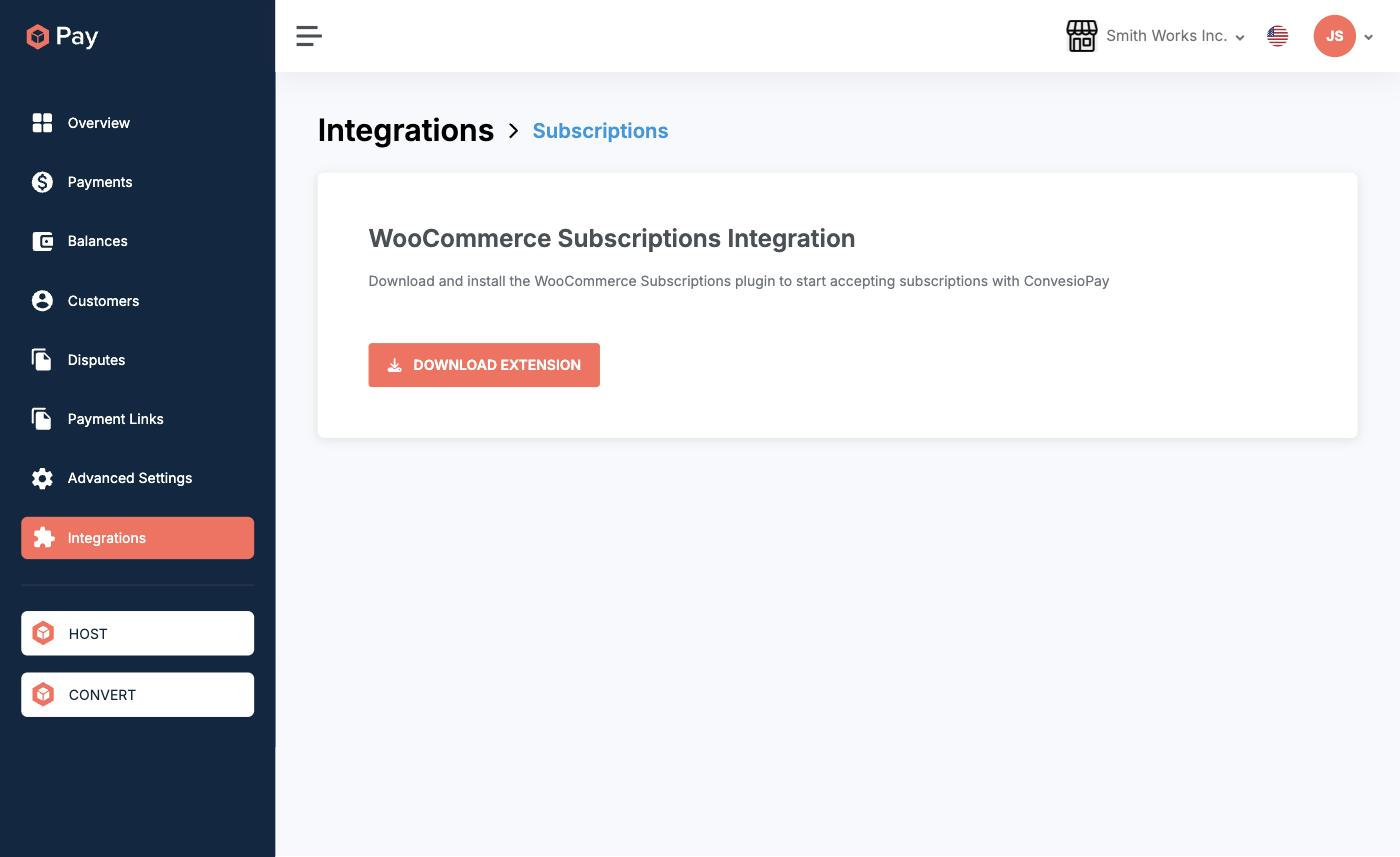
Save the .zip file to your computer.
Step 2: Install the extension in WordPress
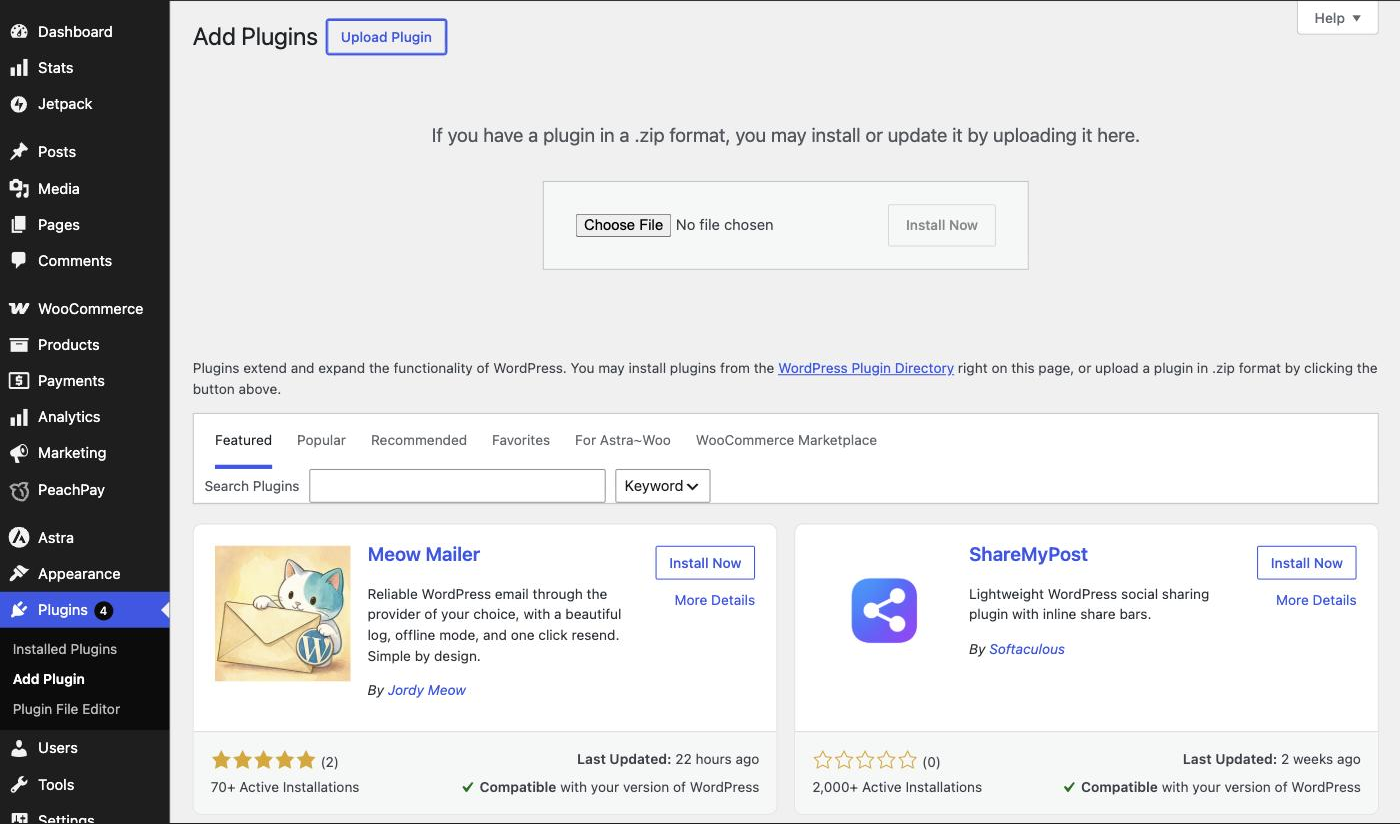
- In your WordPress admin, go to Plugins → Add New → Upload Plugin.
- Click Choose File, select the
.zipfile you downloaded, and click Install Now. - Once installed, click Activate Plugin.
Step 3: Create a subscription product
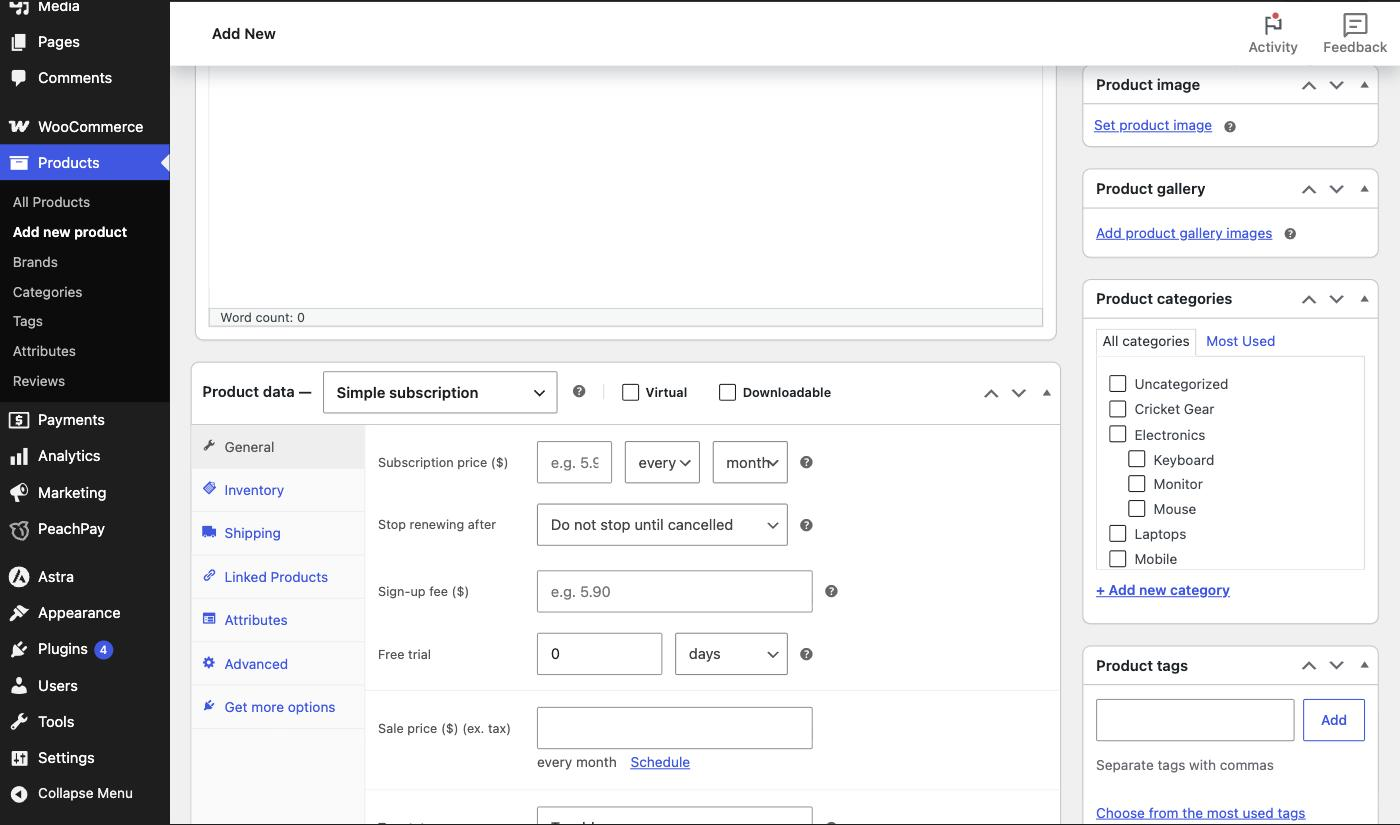
- In WordPress admin, go to Products → Add New (or edit an existing product).
- In the Product Data section, change the product type to Simple subscription (or Variable subscription for multiple tiers).
- Set the subscription price, billing interval (e.g. $19/month), and any trial period or sign-up fee.
- Publish or update the product.
Step 4: Confirm ConvesioPay is the active payment gateway
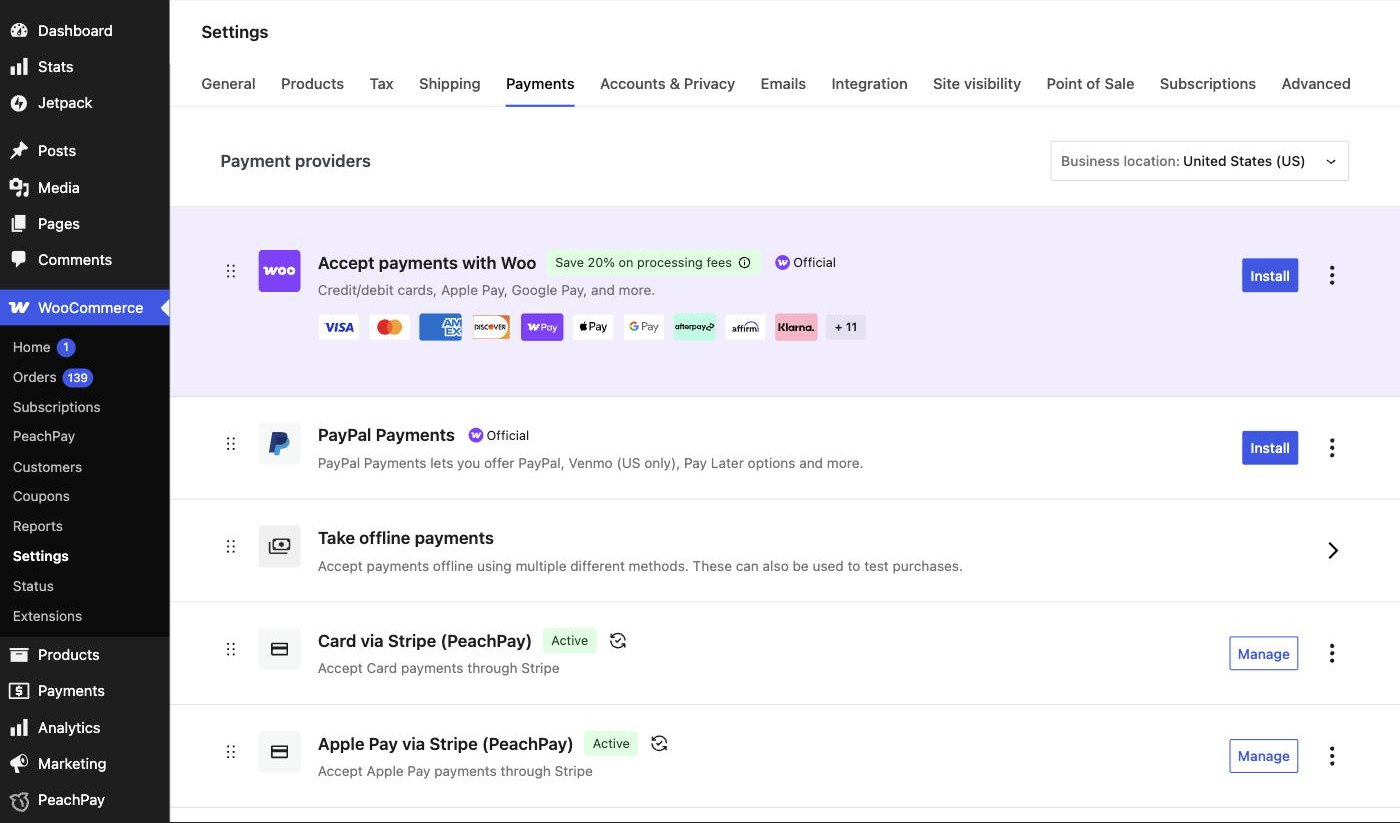
WooCommerce Subscriptions processes recurring payments through whichever gateway the customer used for the initial order. Confirm ConvesioPay is active and set as the default:
- Go to WooCommerce → Settings → Payments.
- Confirm ConvesioPay (via PeachPay or direct) is listed and Active.
- If multiple gateways are active, drag ConvesioPay to the top of the list to make it the default.
Test checklist
- Add a subscription product to the cart and proceed to checkout
- Complete checkout using a test card
- Confirm the subscription is created under WooCommerce → Subscriptions
- Confirm the initial payment appears in ConvesioPay → Payments
- Verify the subscription status shows Active
- (Optional) Advance the next renewal date and confirm the renewal payment processes correctly
Troubleshooting
Subscription product type not appearing in WooCommerce
- Confirm the WooCommerce Subscriptions plugin is activated under Plugins → Installed Plugins.
- WooCommerce must be active before activating WooCommerce Subscriptions.
Renewal payments failing
- Confirm ConvesioPay supports tokenized/recurring payments for your account — contact Convesio support if unsure.
- Check the failed payment details under ConvesioPay → Payments for a specific decline reason.
- The customer may need to update their card — WooCommerce Subscriptions will send them an email automatically.
Subscription shows “On Hold” after checkout
- This usually means the initial payment failed. Check ConvesioPay → Payments for a declined transaction.
- Confirm your ConvesioPay account is in live mode (not sandbox) if testing with a real card.
How to cancel or pause a subscription
Subscriptions can be managed by the customer from My Account → Subscriptions, or by a store admin from WooCommerce → Subscriptions:
- Open the subscription.
- Use the Status dropdown to set it to Cancelled or On Hold (paused).
- Save changes.
Cancelling a subscription stops future renewals but does not issue a refund for past payments.