Use ConvesioPay as your payment gateway on Shopify Plus — no third-party apps, no headless checkout required. ConvesioPay renders payment fields directly inside Shopify’s native checkout, giving your customers a seamless experience while you get enterprise-grade payment infrastructure.
This integration is ideal for merchants who need an alternative to Shopify Payments — including high-volume brands, regulated-industry merchants, and businesses that require more flexible risk controls.
What’s included
- Native Shopify checkout — ConvesioPay fields render inside the standard Shopify checkout page
- Native full and partial refunds — refund directly from Shopify admin, no separate dashboard required
- Authorization voids on cancellation — canceling an uncaptured order in Shopify automatically voids the authorization in ConvesioPay
- Unified transaction log — every payment is recorded in both Shopify’s order timeline and ConvesioPay’s dashboard
- Supports Visa, Mastercard, Amex, Discover
Before you start
You will need:
- An active ConvesioPay account (merchant account verified)
- A Shopify Plus store with admin access
Note: ConvesioPay for Shopify Plus is installed as a custom private app by the Convesio support team — it is not available on the Shopify App Store.
Step 1: Request installation from Convesio Support
- Log in to your ConvesioPay dashboard.
- Go to Integrations and find Shopify Plus.
- Click View Integration to open the integration page.
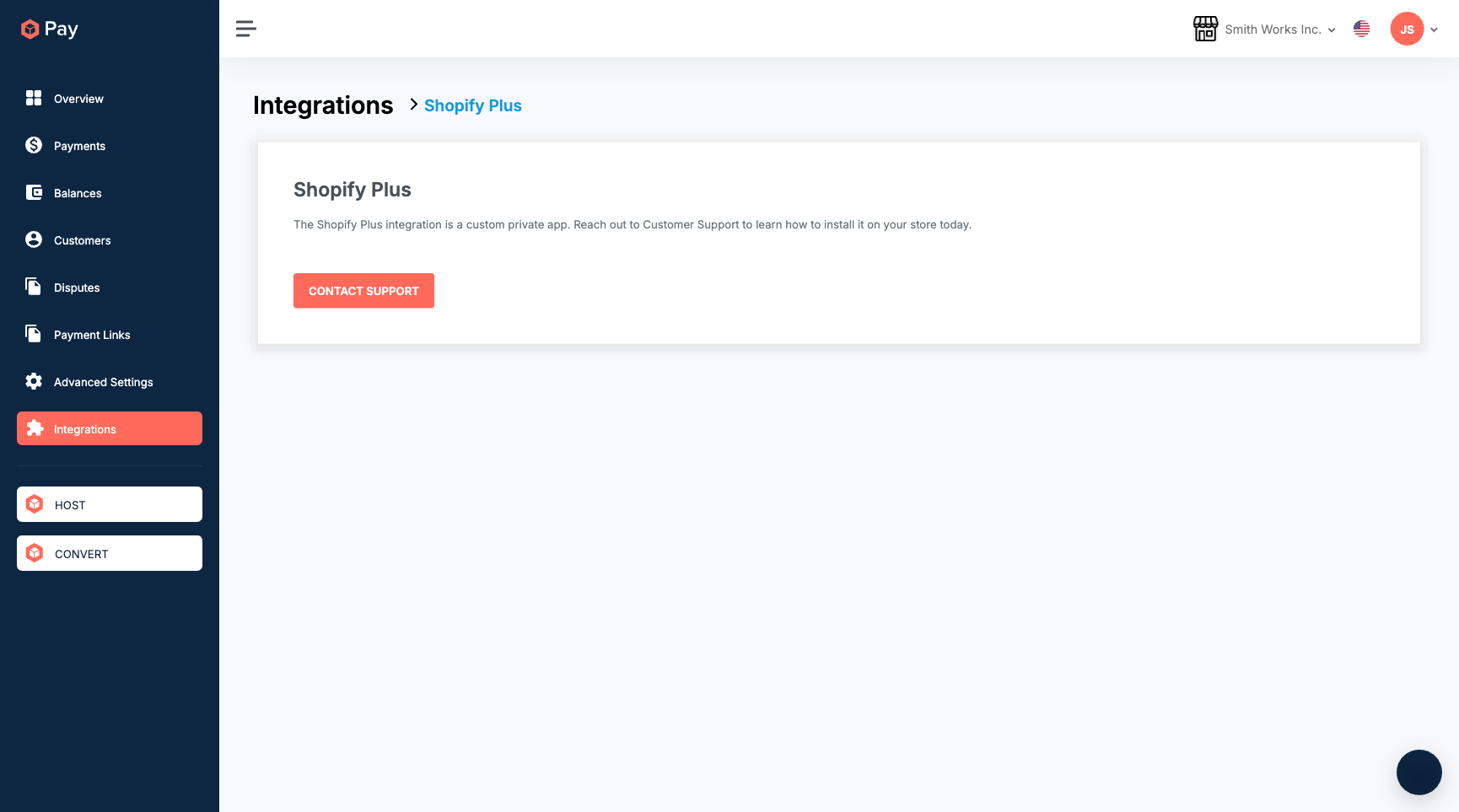
- Contact the Convesio support team to request installation: convesio.com/contact-us
The support team will verify your account, build the custom private app for your Shopify store, and send you an install link.
Step 2: Authorize the app in Shopify
When you receive the install link from Convesio support:
- Open the link while logged in to your Shopify admin
- Review the app permissions and click Install
- Go to Settings -> Payments in Shopify and confirm ConvesioPay appears as an active payment provider
Step 3: Test a checkout
Place a test order to confirm everything is working end-to-end:
- Open your Shopify store and add a product to the cart
- Proceed to checkout — you’ll see the standard Shopify checkout page with ConvesioPay payment fields rendered natively
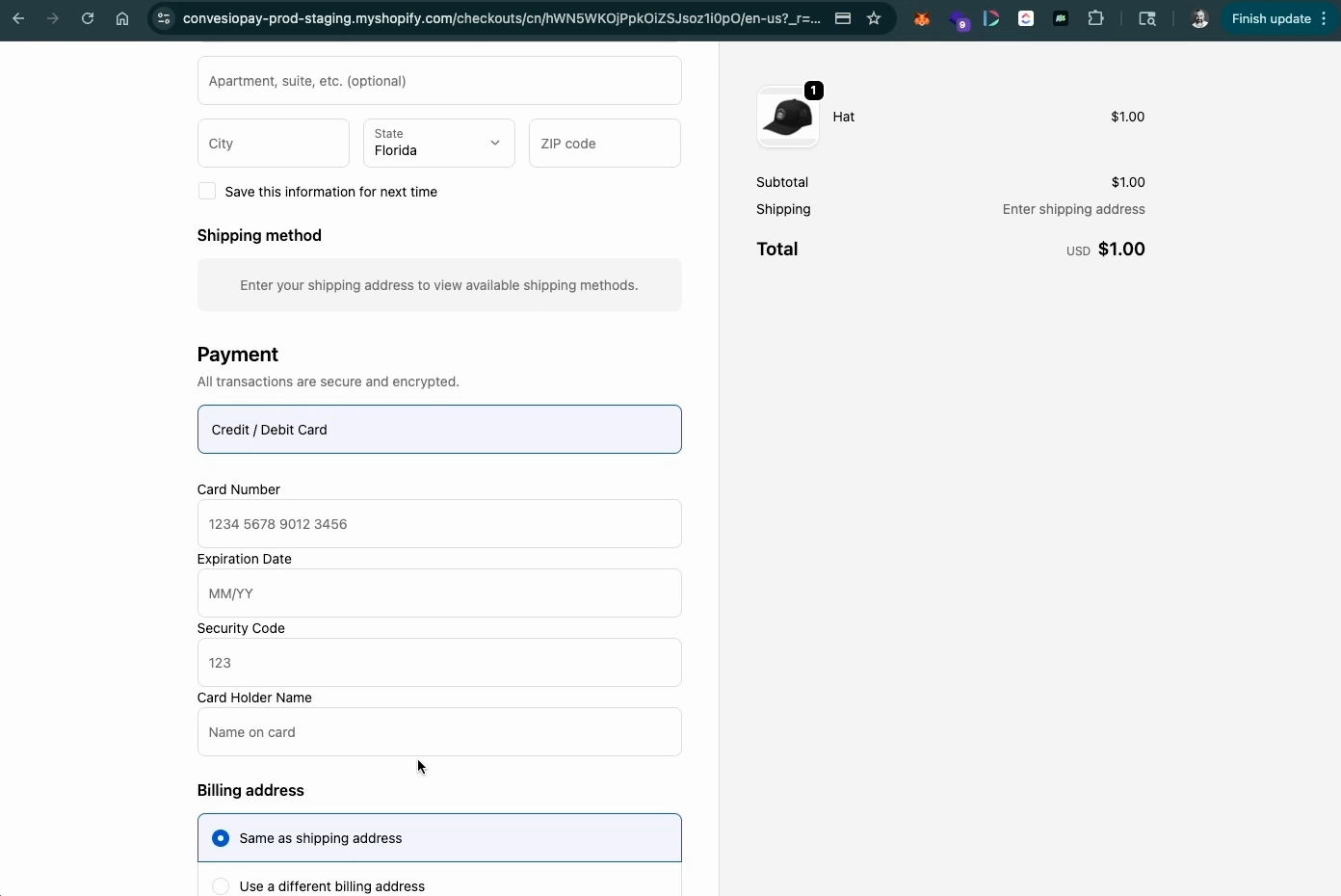
- Complete the order using a test card
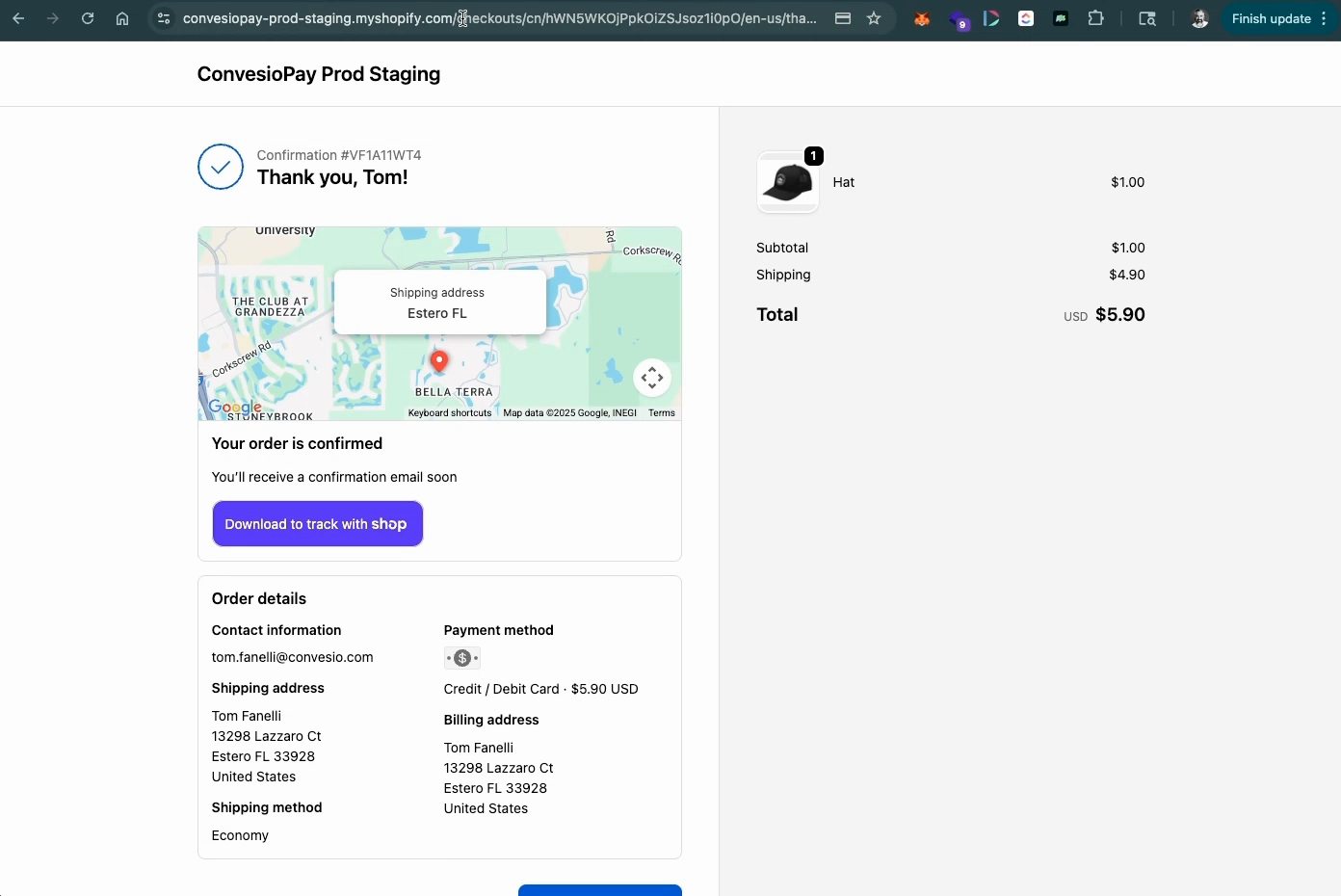
- Confirm the order is created successfully in your store
Step 4: Verify the order in Shopify admin
After a successful payment:
- In Shopify admin, go to Orders
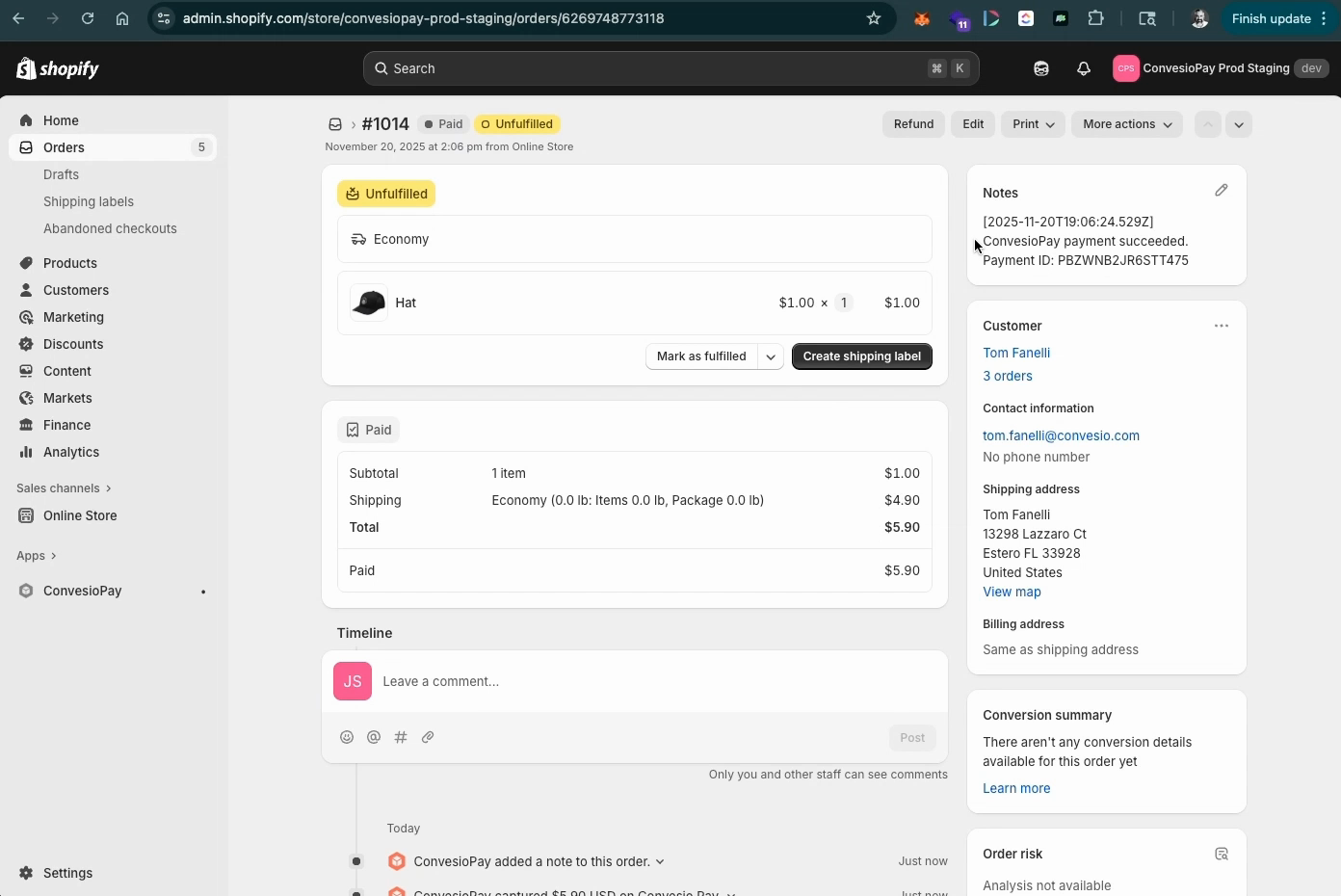
- Open the order — you’ll see Convesio Pay payment success in the order notes and timeline
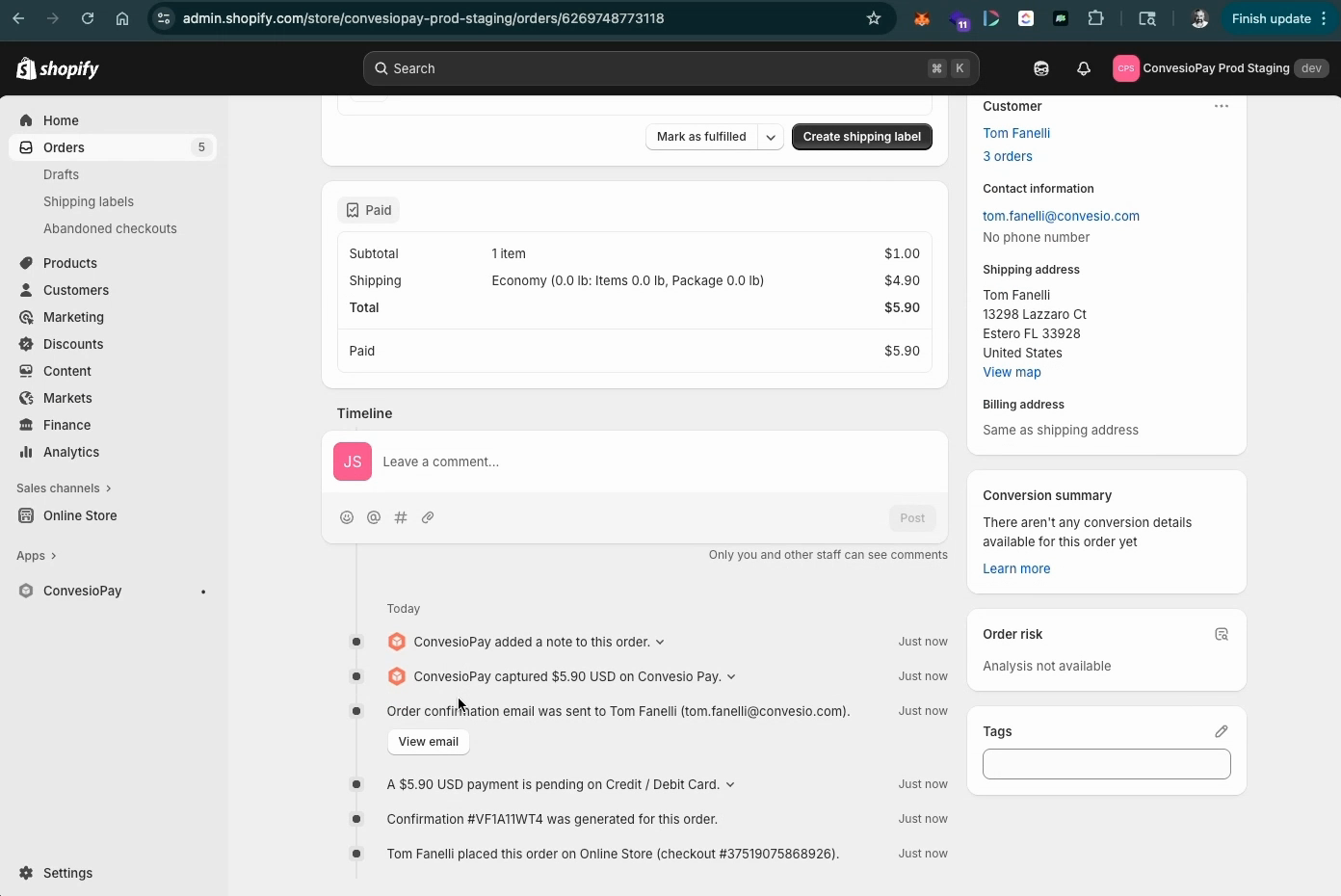
Step 5: Verify the payment in ConvesioPay
- Go to your ConvesioPay dashboard -> Payments
- Locate the transaction — it will show the Shopify platform as the source
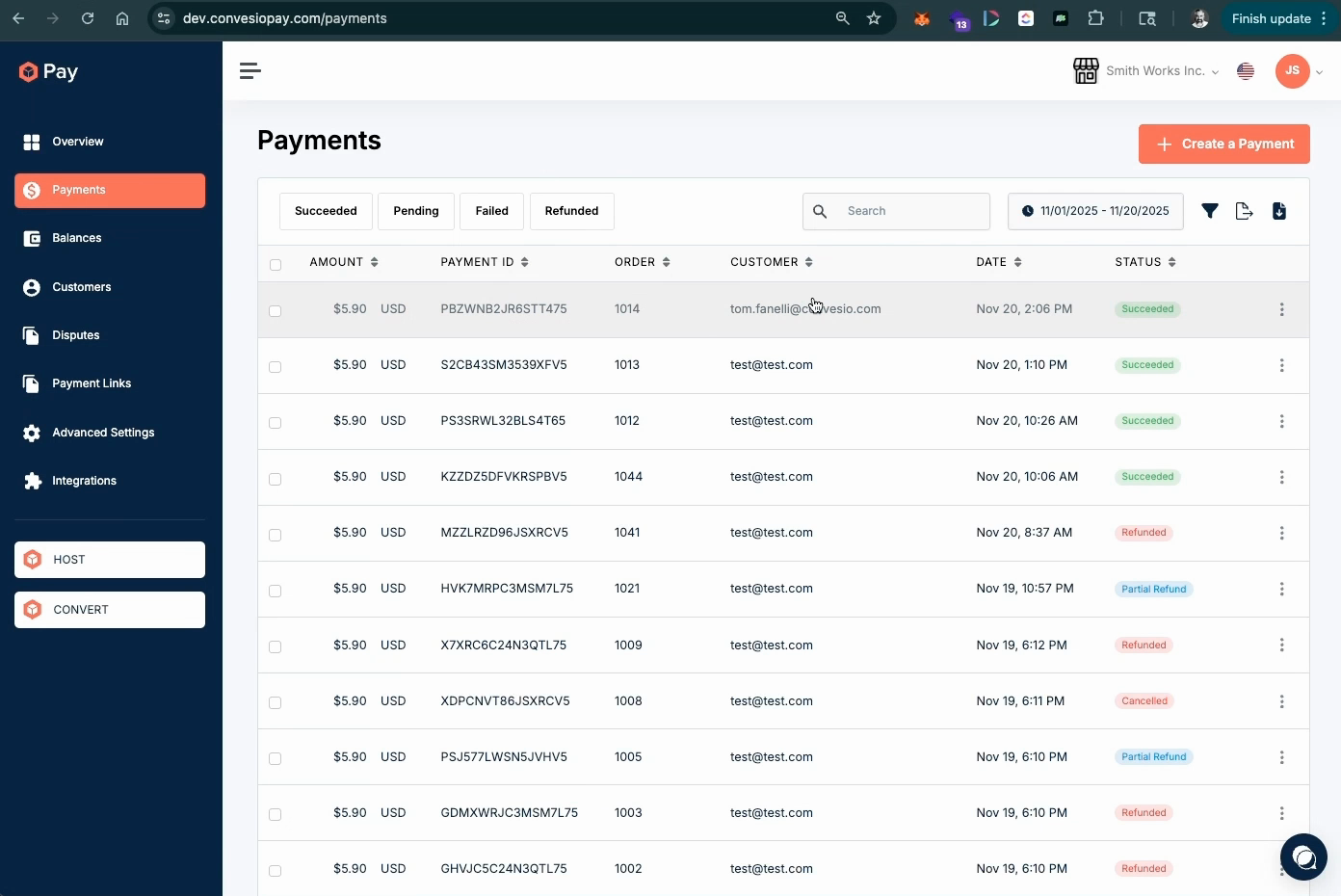
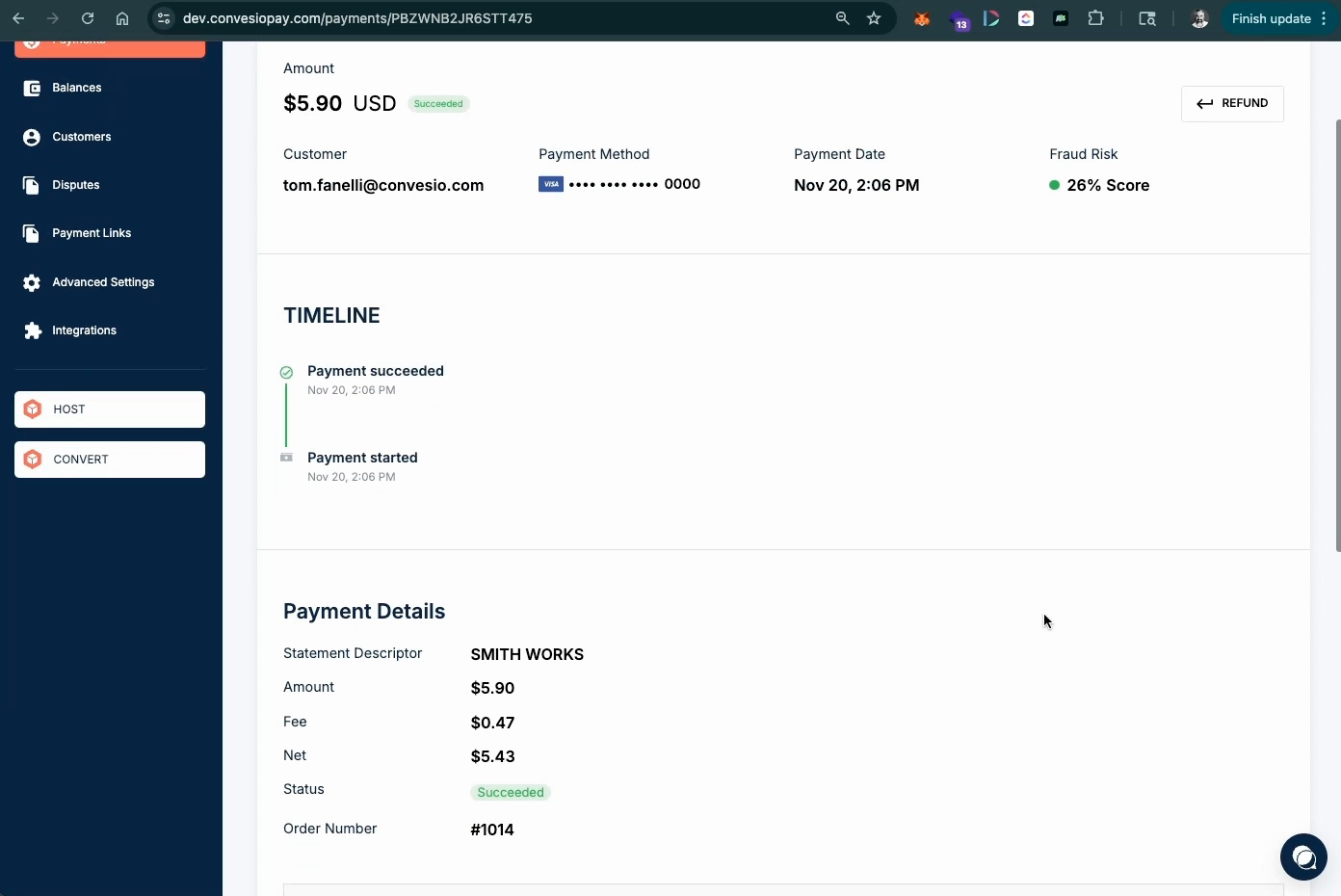
- Click the payment to view full details, fraud risk indicators, and transaction status
Processing refunds
ConvesioPay supports full and partial refunds directly from Shopify — no need to log into ConvesioPay separately.
Full refund:
- In Shopify admin, open the order and click Refund
- Shopify triggers the refund and ConvesioPay reverses the transaction automatically
Partial refund:
- In Shopify admin, open the order and click Refund
- Enter the amount or select specific items to refund
- ConvesioPay processes the partial reversal and updates its ledger
You can also initiate refunds directly from ConvesioPay -> Payments if needed.
Canceling an uncaptured order
If you use manual capture (common for high-ticket or high-risk workflows) and need to cancel before capturing:
- In Shopify admin, open the order and click Cancel order
- Shopify cancels the order and ConvesioPay automatically voids the authorization — no manual step required
This prevents accidental captures on canceled orders.
Troubleshooting
ConvesioPay doesn’t appear in Shopify Payments settings
- Confirm you completed the install step — go to Shopify admin -> Apps and verify the app is listed
- Contact Convesio support if the install link expired or the app is missing
Payments fail at checkout
- Confirm your ConvesioPay account is in live mode (not sandbox) for production orders
- Contact Convesio support with the Shopify order ID and any error message shown at checkout
Order shows “Pending” or “Partially Paid” after checkout
- This can occur if the payment confirmation webhook was delayed — check the order timeline for updates
- If the status doesn’t resolve within a few minutes, contact support with the order ID
How to remove the integration
Contact Convesio support before removing the app — do not delete it from Shopify admin without coordinating first to avoid disrupting active orders or authorizations.