Accept credit card donations on your WordPress site by connecting ConvesioPay with GiveWP. This guide shows you how to install the GiveWP integration, connect your account, and test a donation.
Before you start
You will need:
- A ConvesioPay account
- A WordPress website
- The GiveWP plugin installed and activated
- Admin access to your WordPress dashboard
Step 1: Download the GiveWP integration
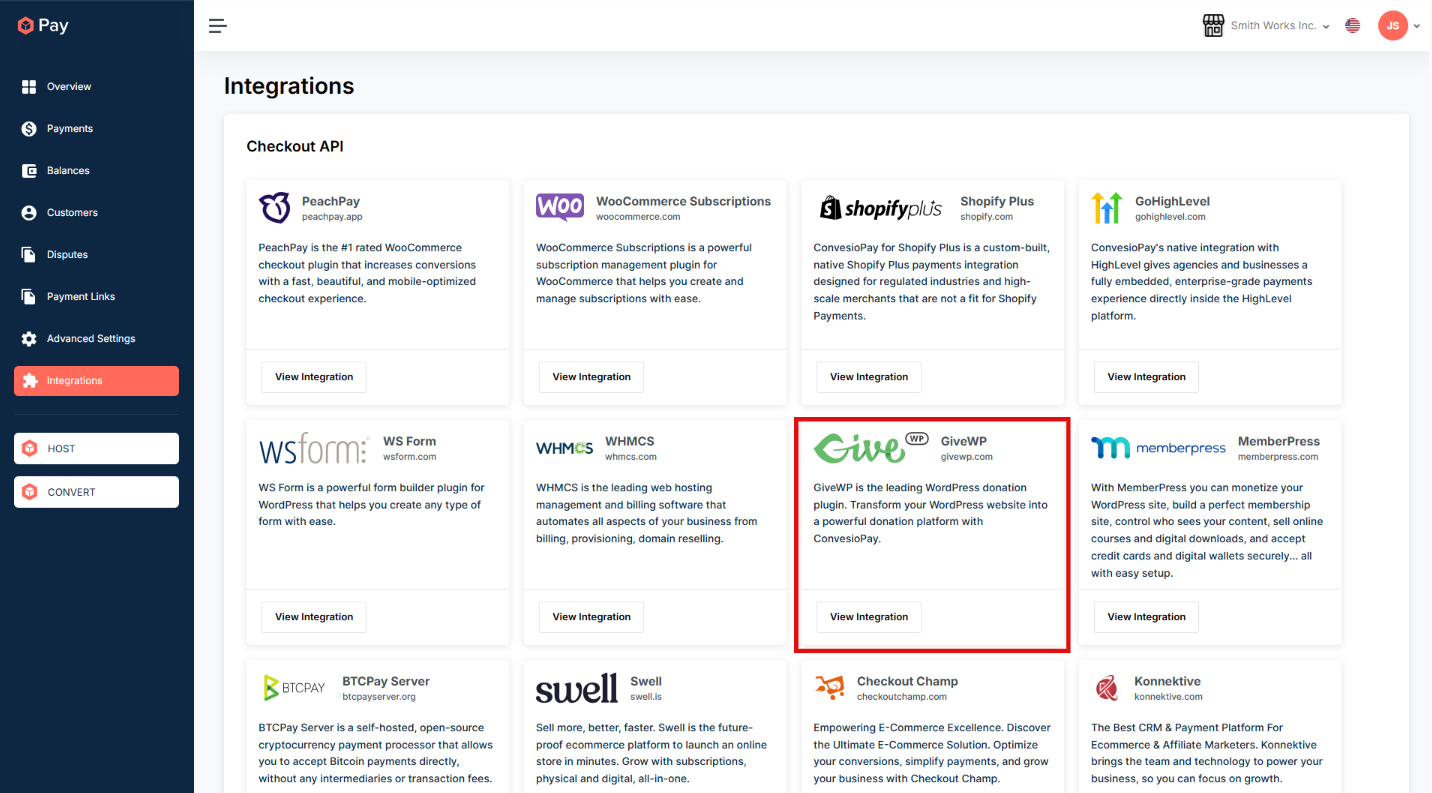
- Go to the ConvesioPay Integrations page: https://convesiopay.com/integrations
- Find GiveWP.
- Click View Integration button.
- Download the plugin file (it downloads as a
.zip).
Step 2: Install the plugin in WordPress
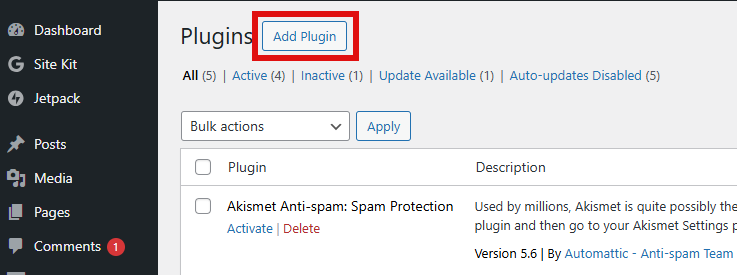
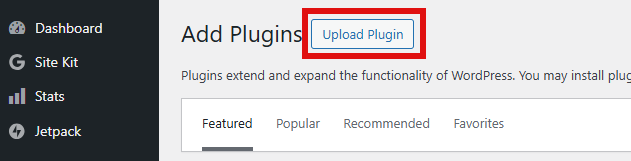
- In WordPress, go to Plugins > Add New.
- Click Upload Plugin.
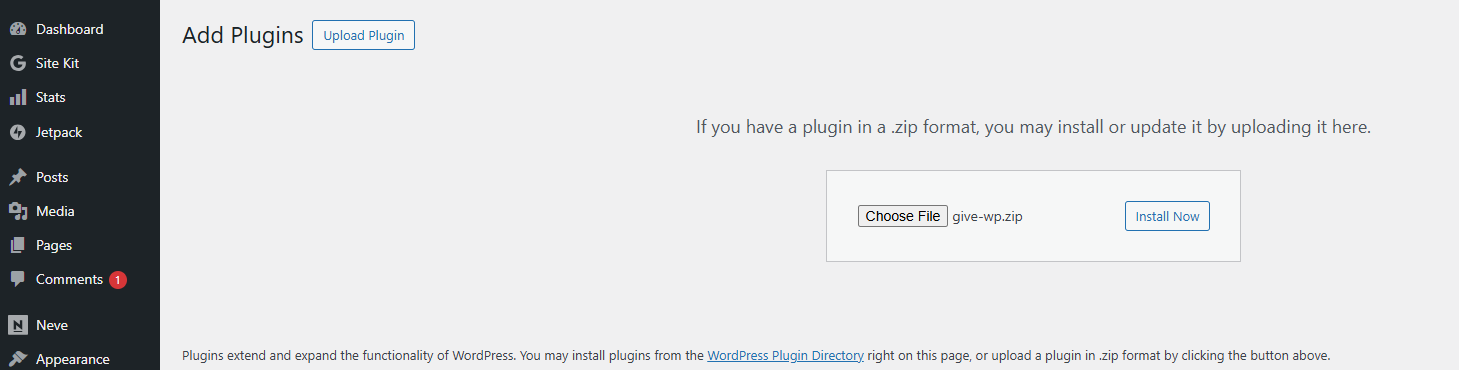
- Choose the
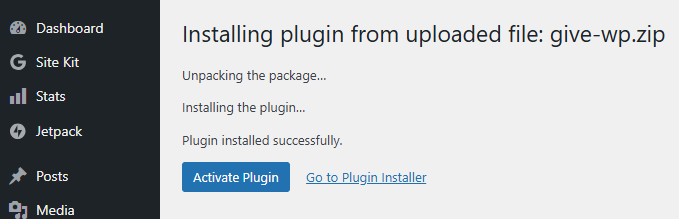
.zipfile you downloaded. - Click Install Now, then Activate.
Step 3: Connect ConvesioPay in your GiveWP settings
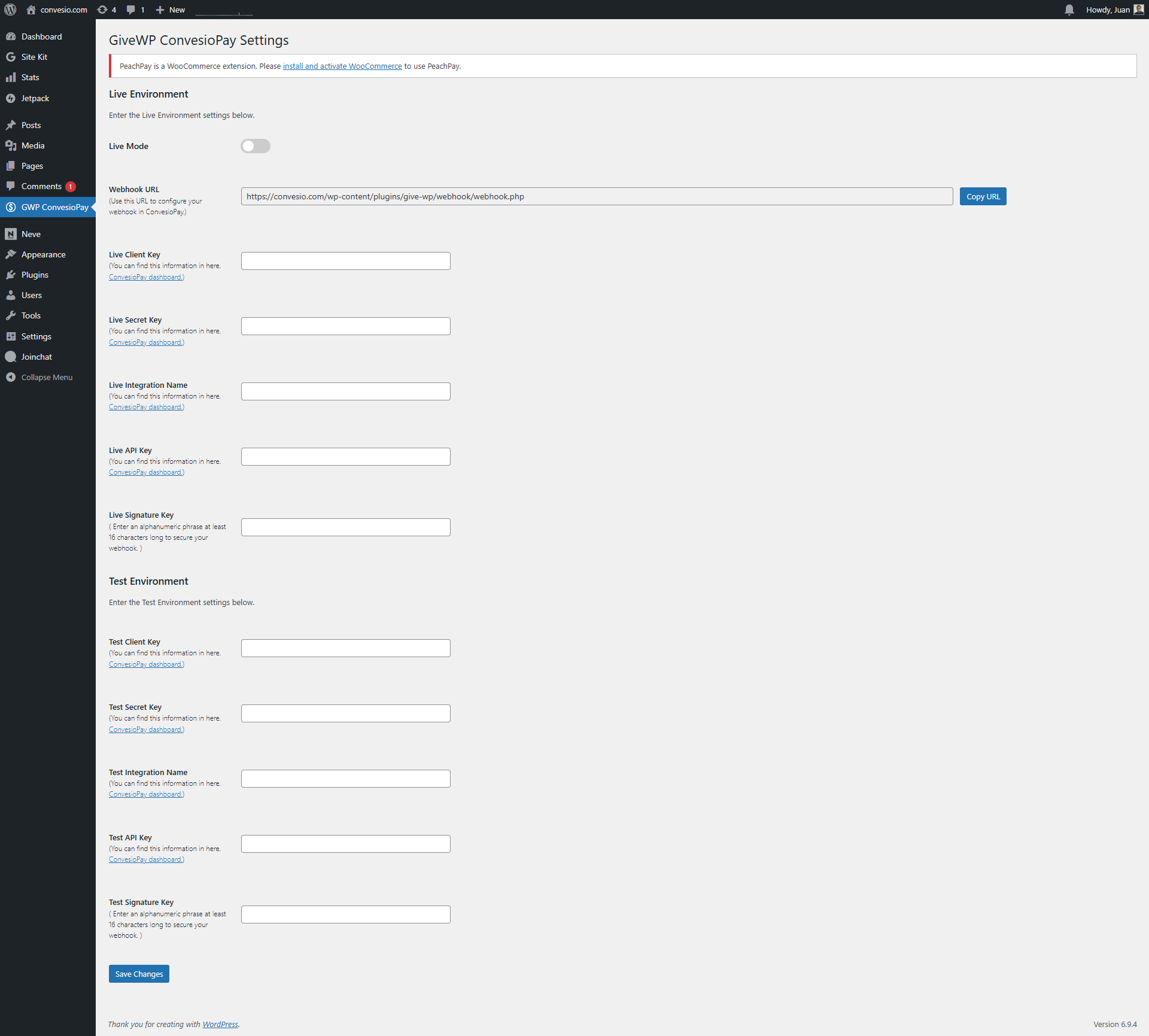
- In your WordPress dashboard, click GWP ConvesioPay in the left menu.
- Choose the environment you want to set up:
- Test Environment (recommended first), or
- Live Environment (when you are ready to accept real donations)
- In that section, paste the connection details from your ConvesioPay account into the matching fields, such as:
- Client Key
- Secret Key
- Integration Name
- API Key
- Signature Key (if required)
- (Optional) Copy the Webhook URL shown on this page. If ConvesioPay asks for a webhook URL, paste it there.
- Click Save Changes.
Once saved, ConvesioPay is connected and ready to be enabled in GiveWP.
Step 4: Enable ConvesioPay in GiveWP
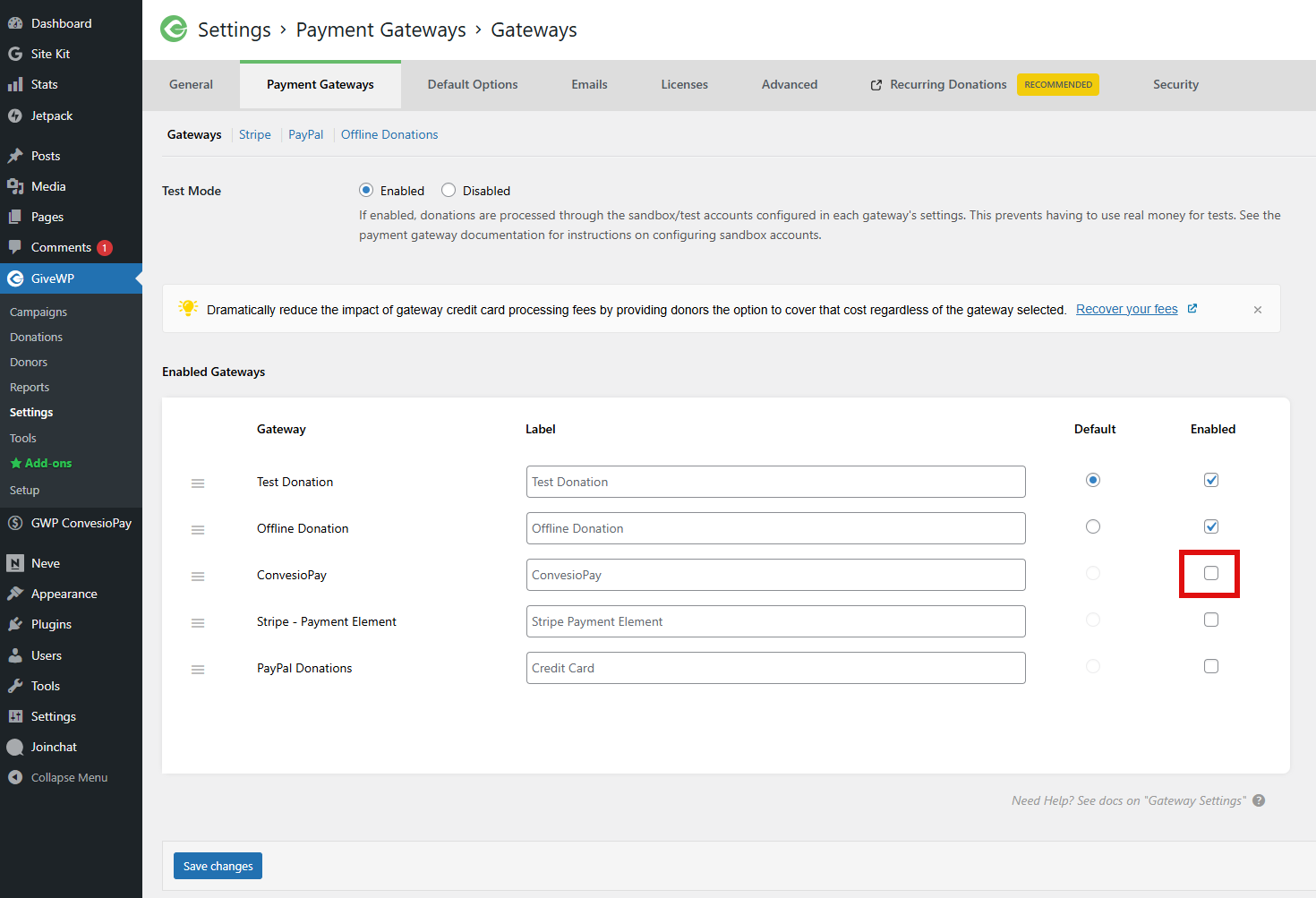
- Go to Donations (GiveWP) > Settings.
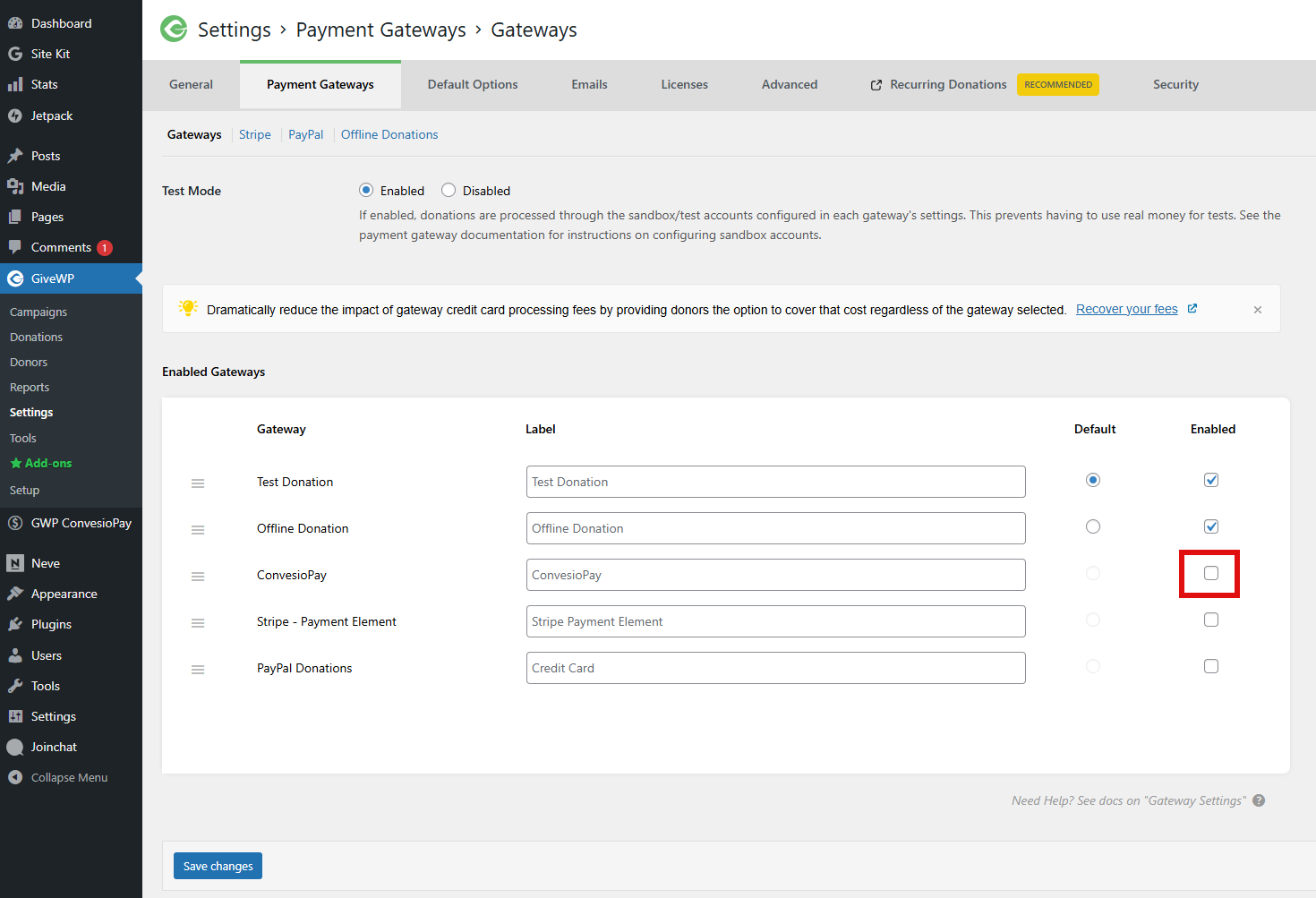
- Open the Payment Gateways tab.
- Enable ConvesioPay.
- Save your changes.
Step 5: Turn it on for your donation forms
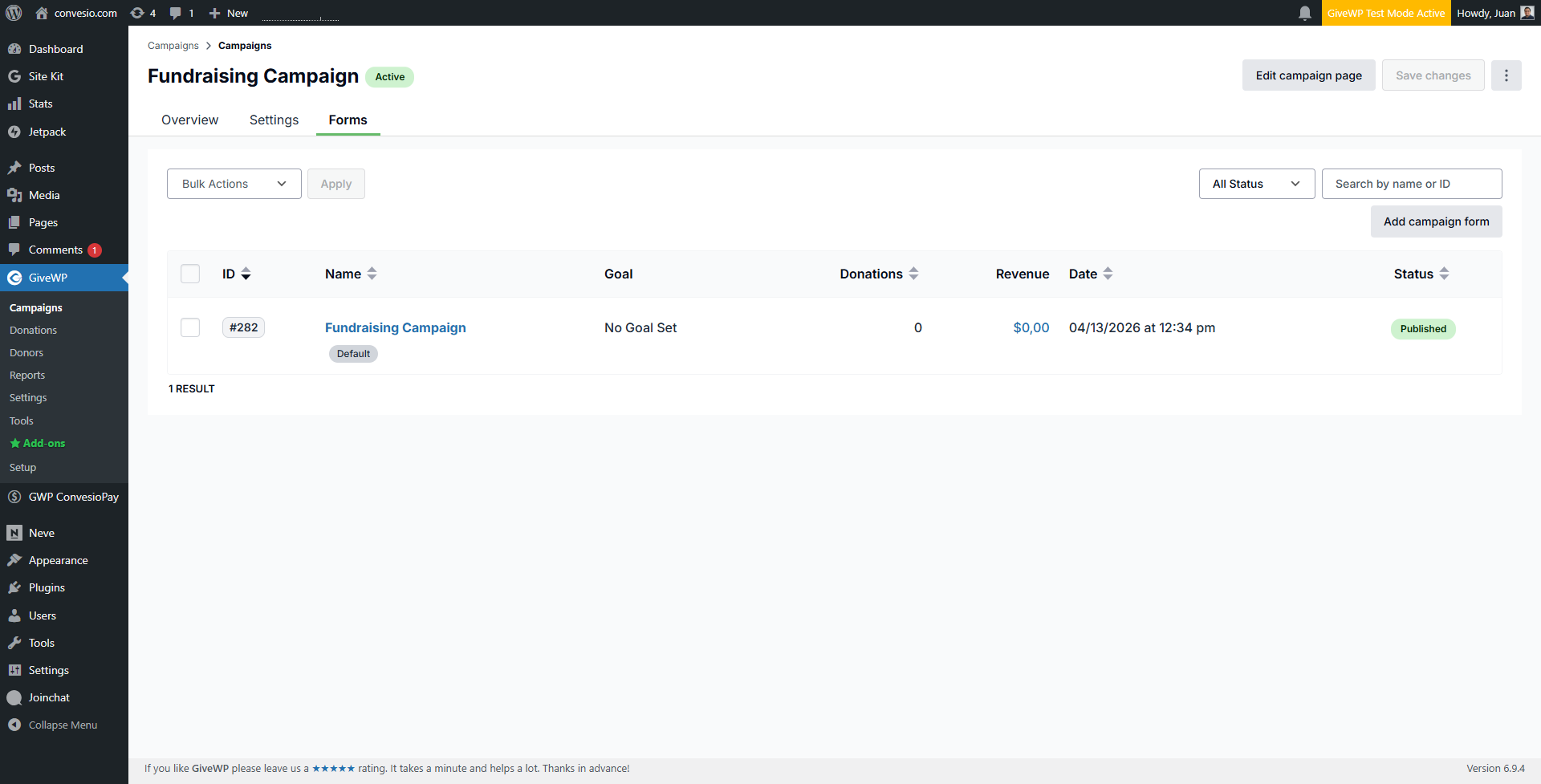
- Go to Campaigns (GiveWP) > Select your Campaign > Donation Forms.
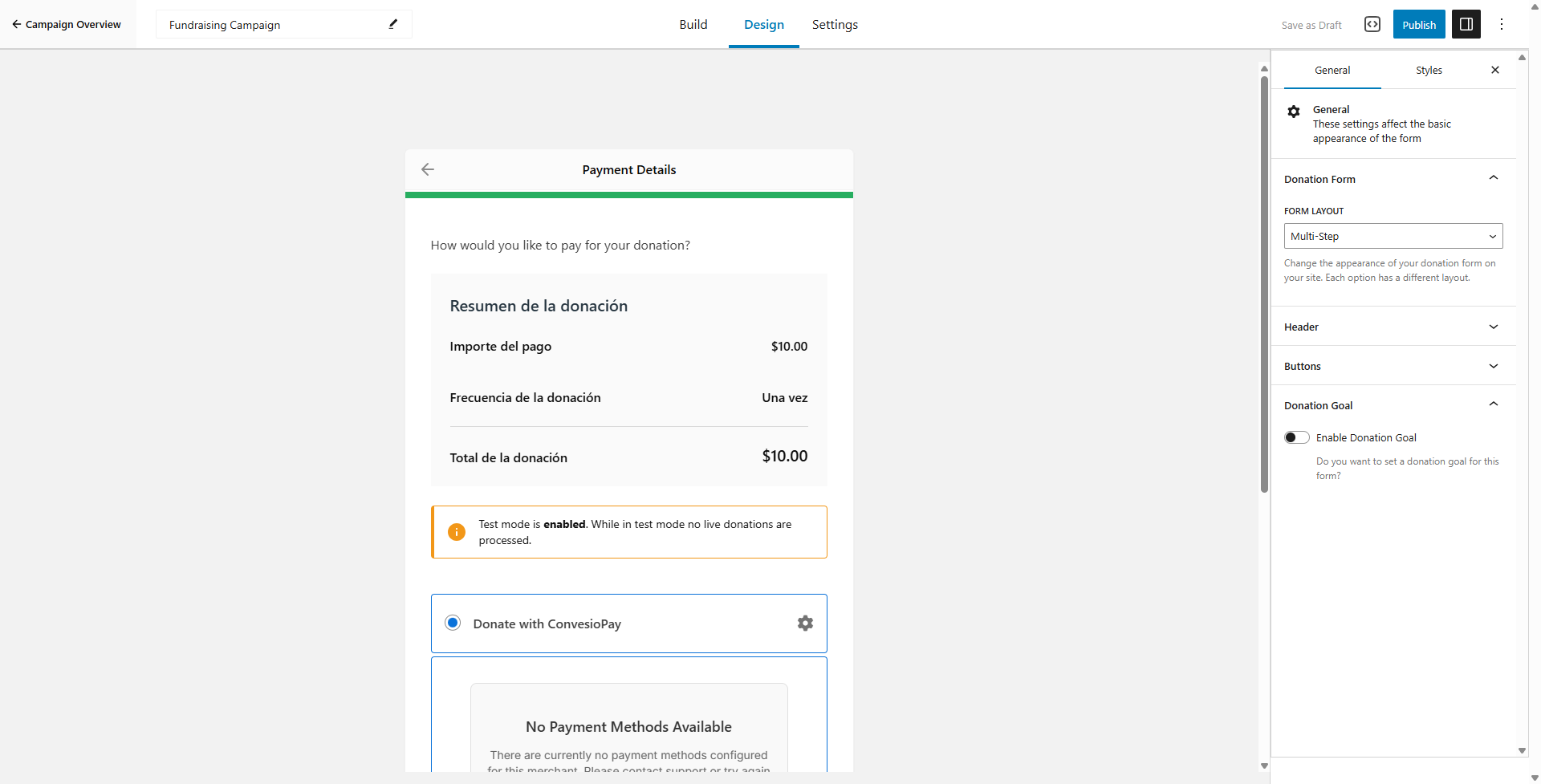
- Edit the form you want to use.
- Confirm ConvesioPay is available as a payment option.
- Update the form.
Test a donation (recommended)
Before going live, run a quick test donation to confirm everything is working.
- If you see a Test Mode option in the ConvesioPay settings, enable it and place a test donation first.
- When you are ready to accept real donations, switch back to Live Mode.
If you are not sure whether you are in test mode or live mode, check your ConvesioPay settings before sharing the donation form publicly.
Troubleshooting
ConvesioPay does not appear in GiveWP
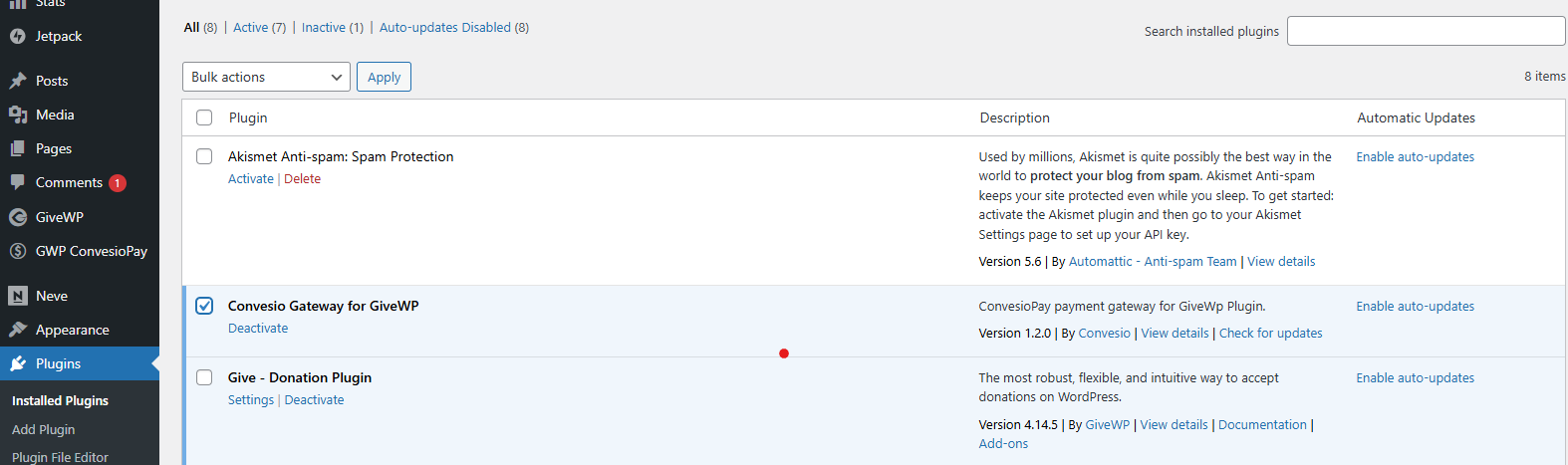
- Make sure the ConvesioPay GiveWP plugin is activated in WordPress.
- Update WordPress, GiveWP, and the ConvesioPay plugin to the latest versions.
Can’t connect your account
- Try disconnecting and connecting again.
- Make sure your site is able to reach ConvesioPay (no security plugin or firewall blocking it).
Donations fail after going live
- Confirm you switched from Test Mode to Live Mode (if applicable).
- Double-check that ConvesioPay is enabled in GiveWP > Settings > Payment Gateways.
How to disconnect ConvesioPay
- Go to GiveWP > Settings > Payment Gateways and disable ConvesioPay.
- In WordPress > Plugins, deactivate (and optionally delete) the ConvesioPay GiveWP plugin.