Connect ConvesioPay with HighLevel (GoHighLevel) so you can accept payments inside HighLevel and keep payment activity in sync.
Before you start
You will need:
- A ConvesioPay account (admin access recommended)
- A HighLevel account with admin permissions
- Access to install Marketplace apps in HighLevel (Agency and Location/Sub-account permissions as applicable)
Step 1: Open the GoHighLevel integration page in ConvesioPay
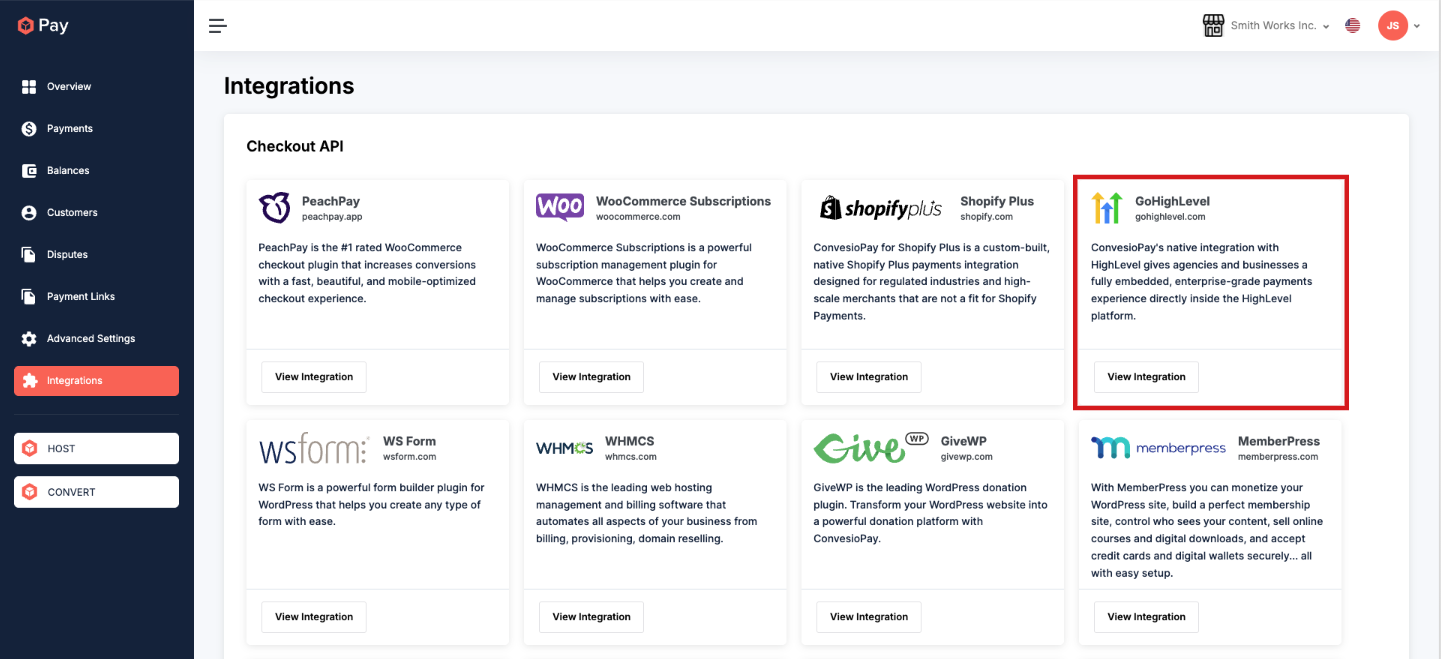
- Log in to your ConvesioPay dashboard.
- Go to Integrations.
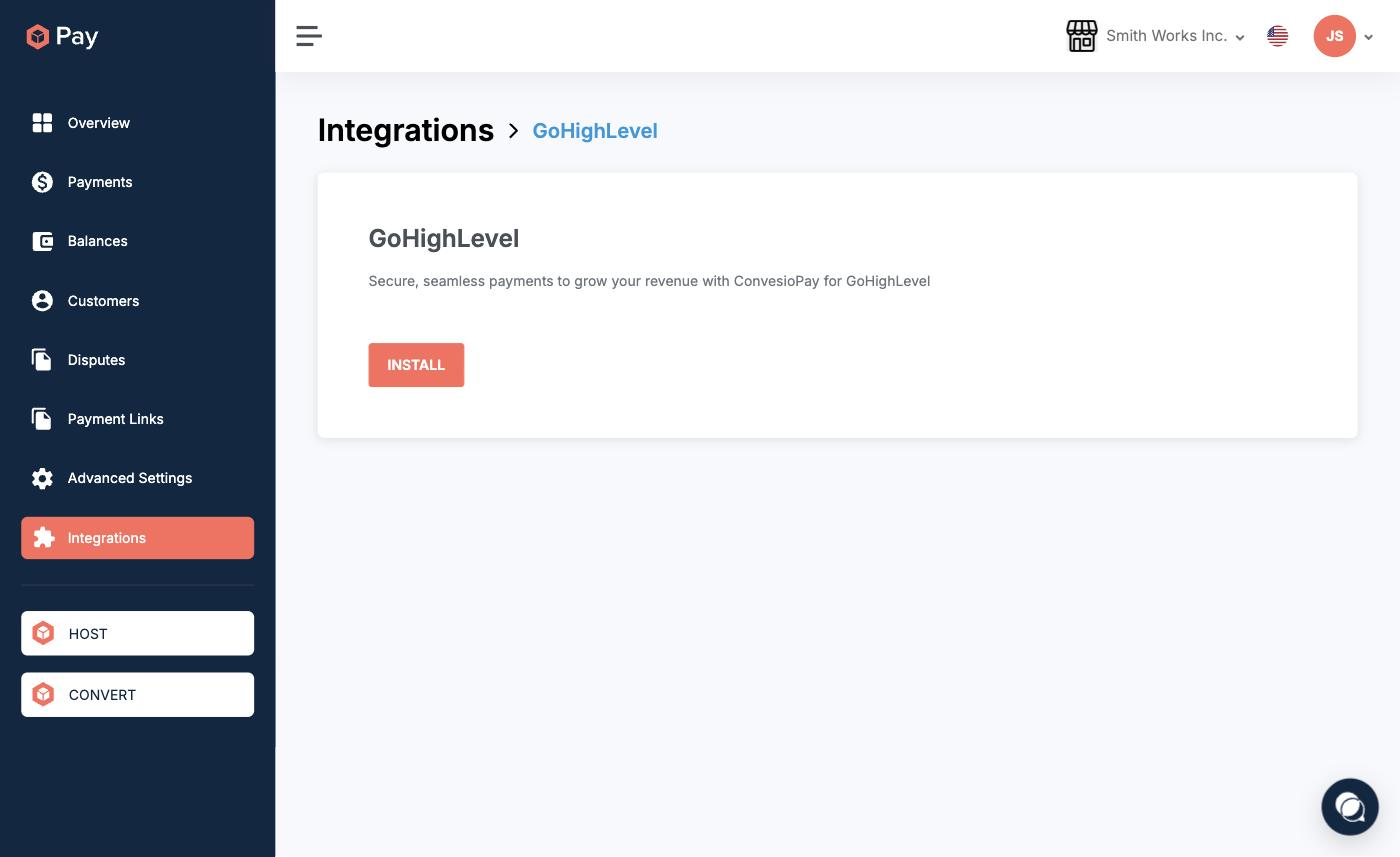
- Find GoHighLevel and open it.
- Click Install — this opens the HighLevel Marketplace listing.
Step 2: Install ConvesioPay from the HighLevel Marketplace
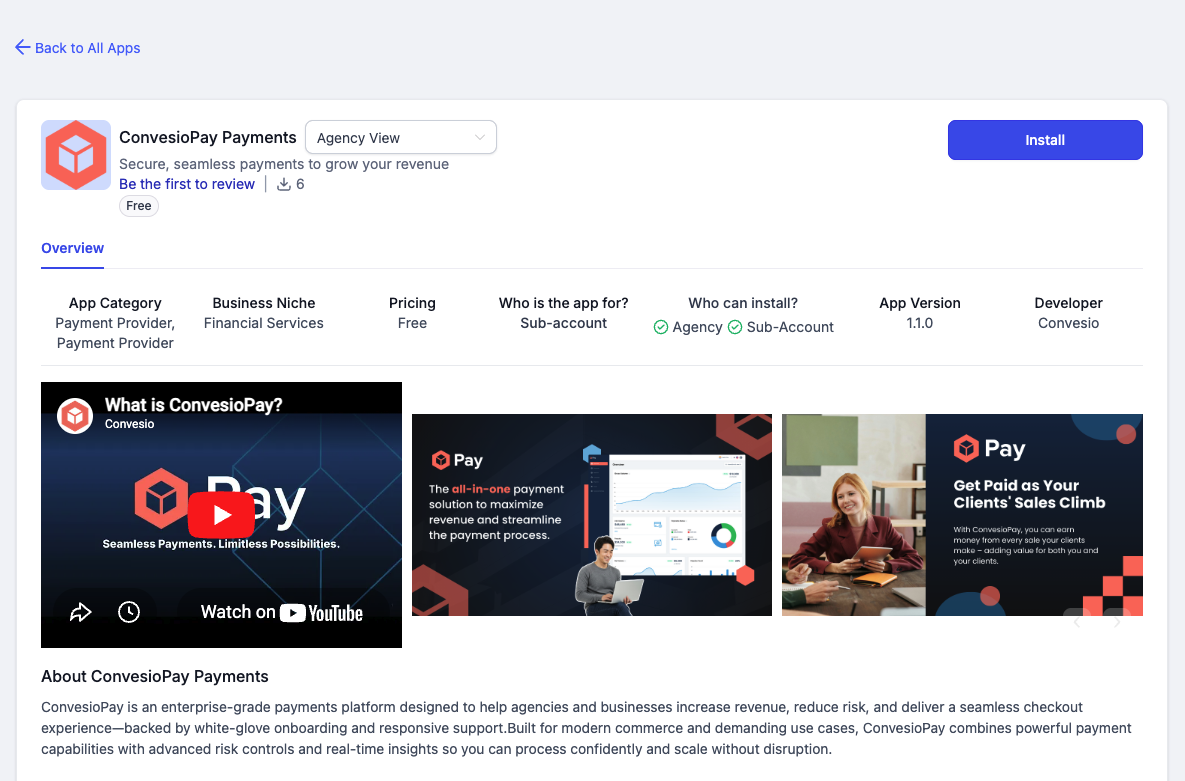
If you did not arrive via the button in Step 1, open the listing directly:
- Click Install.
- Log in to HighLevel if prompted.
- Select the Agency/Account/Location where you want the integration installed.
- Review the permissions request, then click Authorize (wording may vary).
Step 3: Connect the integration inside HighLevel
- In HighLevel, switch into the correct Location/Sub-account (if applicable).
- Go to App Marketplace → Installed Apps.
- Find ConvesioPay (Pay) and open it.
- Click Connect if shown, then complete the authorization flow.
Step 4: Verify the connection in ConvesioPay
- In ConvesioPay, go to Integrations → GoHighLevel.
- Confirm the integration shows as connected for the correct account/location.
What you can do once connected
- Accept one-time payments and invoices inside HighLevel
- Send payment links to contacts
- Issue refunds (if enabled in ConvesioPay)
- Use Apple Pay (if enabled in ConvesioPay for your merchant account)
Test checklist
- Create a small test invoice or payment link inside HighLevel.
- Complete payment as a customer.
- Confirm:
- Payment shows as successful in HighLevel
- Payment appears in ConvesioPay’s transaction log
- Notifications and receipts behave as expected
Troubleshooting
Can’t find ConvesioPay in HighLevel
- Confirm the app is installed from the Marketplace (Step 2)
- Confirm you are in the correct Agency and Location/Sub-account
- Confirm you have admin permissions to view installed apps
Install or authorization fails
- Try logging out and back in to HighLevel
- Use an incognito/private browser window
- Repeat the install flow from the Marketplace listing
Payments succeed but don’t sync or update
- Confirm you connected the app in the correct Location/Sub-account
- Refresh HighLevel and retry after a few minutes
- Disconnect and reconnect the integration
How to disconnect
- In HighLevel, go to App Marketplace → Installed Apps → ConvesioPay, then remove the app.
- In ConvesioPay, go to Integrations → GoHighLevel and disconnect if the option is available.