Use ConvesioPay with Swell to accept card payments in your Swell storefront. The connection is configured from your Swell admin — ConvesioPay provides the credentials and the Swell integration page links you to your Swell account.
Before you start
You will need:
- A ConvesioPay account
- A Swell account (sign up at swell.is if you don’t have one)
- Admin access to your Swell store
Step 1: Access the Swell integration in ConvesioPay
- Log in to your ConvesioPay dashboard.
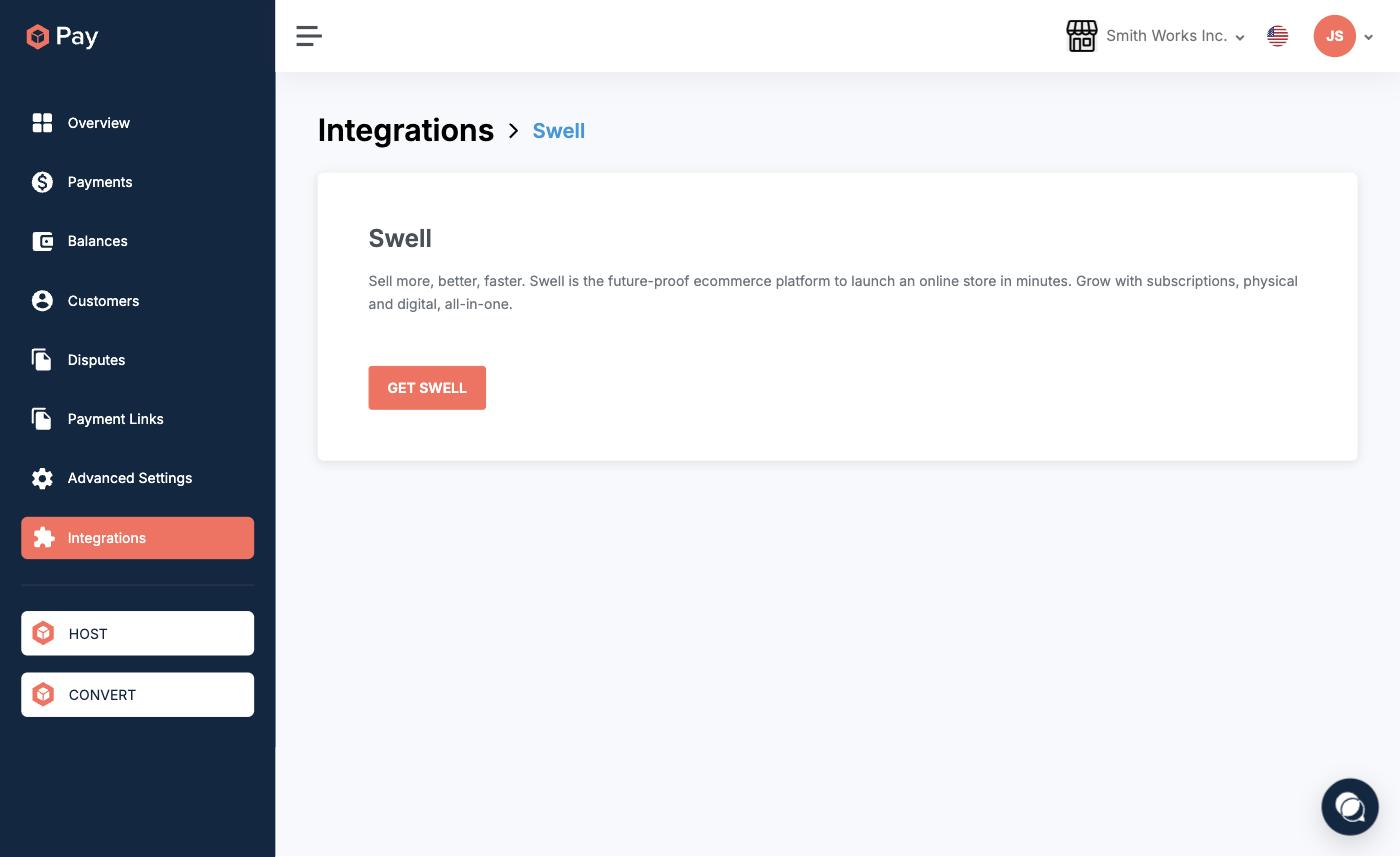
- Go to Integrations.
- Find Swell and open it.
- Click Get Swell to open your Swell account (or sign up if new).
Step 2: Get your ConvesioPay credentials
The connection is configured from Swell using your ConvesioPay API credentials.
- In ConvesioPay, go to Advanced Settings → Get Your API Key (or Connected Integrations).
- Copy your Client Key, API Key, and Secret Key.
Step 3: Configure ConvesioPay as a payment provider in Swell
- In your Swell admin, go to Settings → Payments.
- Find or add ConvesioPay as a payment provider (the exact option name may vary depending on your Swell plan and version).
- Enter your ConvesioPay credentials.
- Save changes.
If you don’t see ConvesioPay listed in Swell’s payment options, contact Convesio support — additional setup may be needed for your account.
Step 4: Test a checkout
- Place a low-value test order in your Swell storefront.
- Confirm:
- Payment is approved
- Order status updates correctly in Swell
- Transaction appears in ConvesioPay’s transaction log
Troubleshooting
ConvesioPay doesn’t appear as a payment option in Swell
- Confirm your Swell plan supports custom payment providers
- Contact Convesio support for assistance connecting these two platforms
Checkout fails or doesn’t redirect correctly
- Confirm your store domain settings in Swell are correct
- Check for any Content Security Policy (CSP) restrictions in your storefront theme
How to disconnect
- In Swell, disable or remove ConvesioPay from your payment settings.
- In ConvesioPay, you can remove the integration’s credentials from Connected Integrations if desired.