Accept credit card payments for WHMCS invoices by setting up ConvesioPay as a payment gateway. This guide walks you through installing the module files, registering a webhook, and connecting your account credentials.
Before you start
You will need:
- A ConvesioPay account
- Admin access to your WHMCS installation
- Access to your WHMCS server files via FTP/SFTP or your hosting file manager
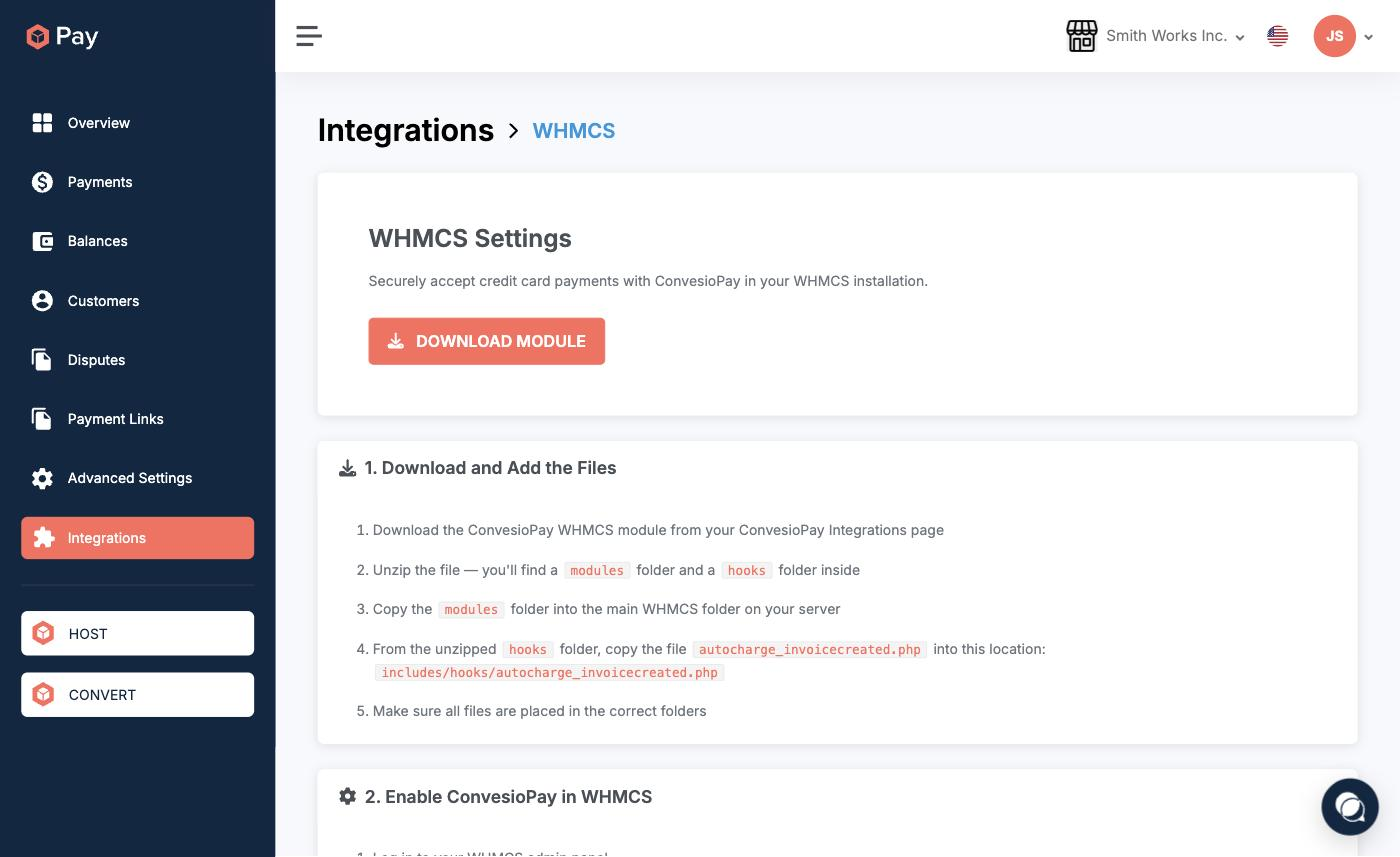
Step 1: Download the WHMCS module
- Log in to your ConvesioPay dashboard at dev.convesiopay.com.
- Go to Integrations.
- Find WHMCS and open it.
- Click Download Module.
Step 2: Upload the module files to your WHMCS server
- Unzip the downloaded package. Inside you will find two folders:
modulesandhooks. - Copy the
modulesfolder into the root WHMCS folder on your server, merging it with the existingmodulesdirectory. - From the unzipped
hooksfolder, copy the fileautocharge_invoicecreated.phpto this path on your server:
includes/hooks/autocharge_invoicecreated.php
- Confirm all files are in place before continuing.
Step 3: Activate ConvesioPay in WHMCS
- Log in to your WHMCS admin panel.
- Go to System Settings.
- Click Payment Gateways.
- Open Apps & Integrations and search for ConvesioPay.
- Click Activate.
- After activation, click Manage — keep this settings screen open for Step 6.
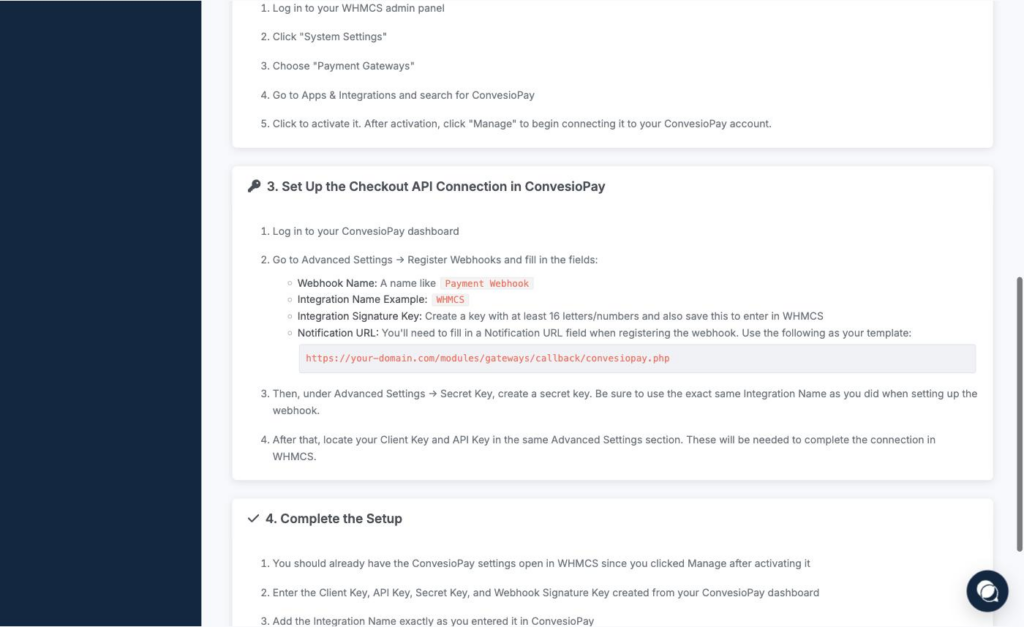
Step 4: Register a webhook in ConvesioPay
- In ConvesioPay, go to Advanced Settings → Register Webhooks.
- Fill in the following fields:
- Click Save.
Step 5: Create a Secret Key in ConvesioPay
- In ConvesioPay, go to Advanced Settings → Secret Key.
- Create a new secret key using the exact same Integration Name you entered in Step 4.
- Save the secret key value.
Then, from the same Advanced Settings area, locate your Client Key and API Key. You will need all four values for Step 6.
Step 6: Complete setup in WHMCS
Go back to the ConvesioPay settings screen in WHMCS (from Step 3). If you navigated away, go to System Settings → Payment Gateways and click Manage next to ConvesioPay.
Enter the following values:
Click Save Changes.
Important: Recurring payments
For recurring payments (subscriptions or auto-charged invoices) to work, the customer must complete at least one payment through ConvesioPay manually. This allows the system to securely save their payment method for future billing.
Test a payment
- Create a test client and a small test invoice in WHMCS.
- Open the invoice as the customer and pay via ConvesioPay.
- Confirm:
- Invoice status updates to Paid in WHMCS
- Payment appears in ConvesioPay’s transaction log
- Webhook notification is received (check WHMCS → Utilities → Logs)
Troubleshooting
ConvesioPay doesn’t appear in WHMCS Payment Gateways
- Confirm the
modulesfolder was copied into the WHMCS root directory (not a subfolder) - Clear any WHMCS system cache and retry
Invoice doesn’t update after payment
- Confirm the Notification URL in Step 4 is correct and publicly accessible from the internet
- Check WHMCS → Utilities → Logs for webhook callback errors
Authentication errors at checkout
- Re-copy all credential values from ConvesioPay (watch for extra spaces)
- Confirm the Integration Name matches exactly in both WHMCS and ConvesioPay
How to disconnect ConvesioPay
- In WHMCS, go to System Settings → Payment Gateways and deactivate ConvesioPay.
- (Optional) Remove the uploaded module files from your server.