Accept credit card payments in your WooCommerce store by connecting ConvesioPay. This guide walks you through installing the integration plugin, connecting your account, and enabling payment methods at checkout.
Before you start
You will need:
- A ConvesioPay account
- A WordPress site with WooCommerce installed
- Admin access to WordPress
- PeachPay plugin installed (ConvesioPay’s WooCommerce payments run through PeachPay)
Step 1: Get the WooCommerce integration plugin
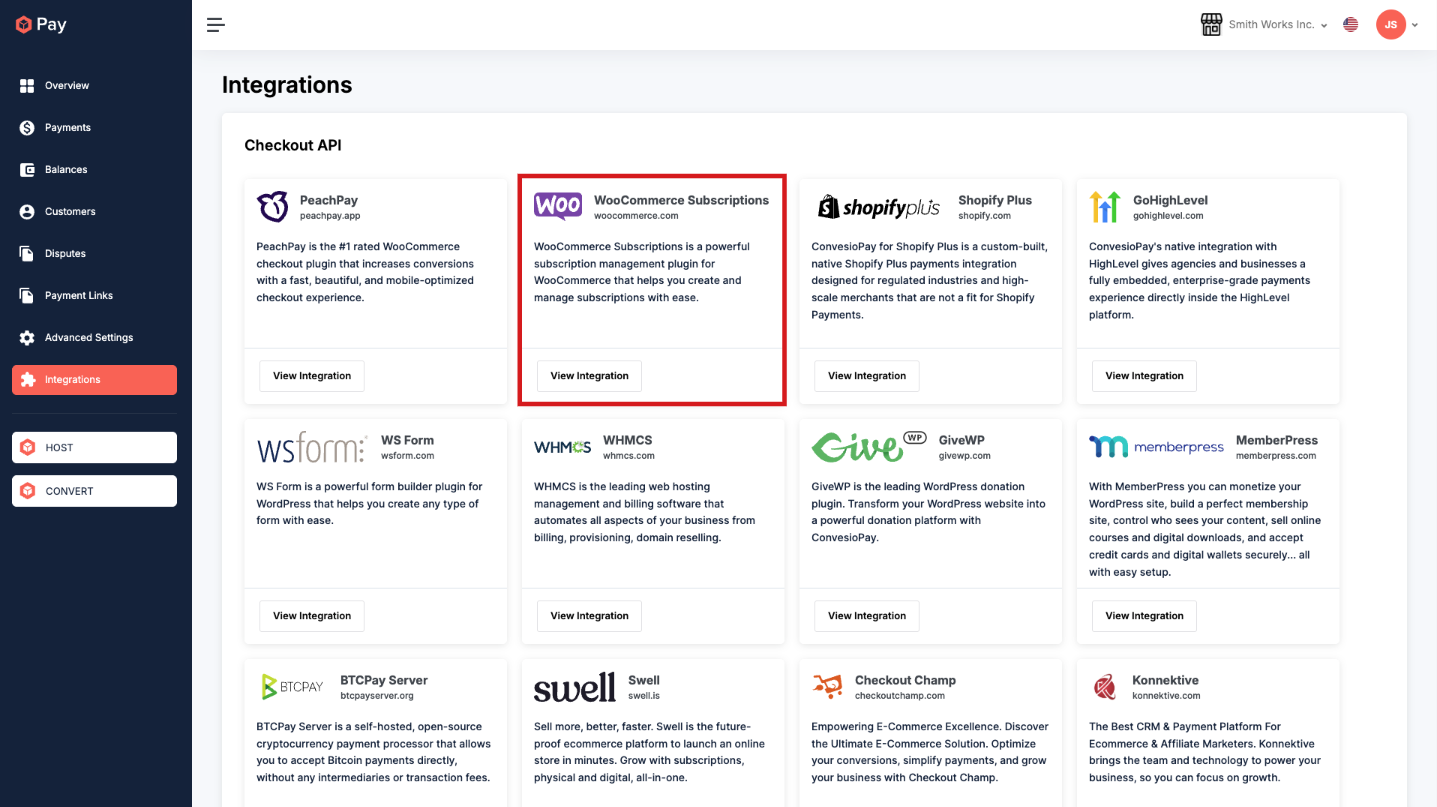
- Log in to your ConvesioPay dashboard.
- Go to Integrations.
- Find PeachPay and click View Integration.
- Click Download Extension.
Step 2: Install the plugin in WordPress
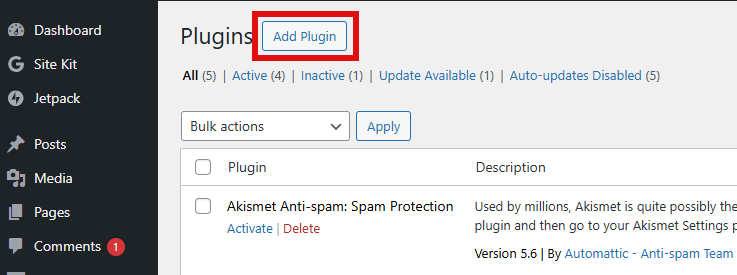
- In WordPress, go to Plugins → Add New.
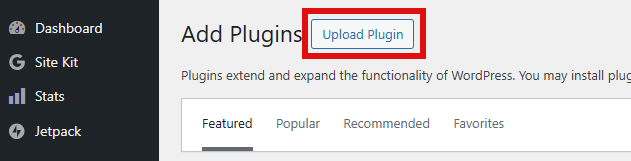
- Click Upload Plugin.
- Select the
.zipfile you downloaded in Step 1. - Click Install Now, then Activate.
Step 3: Connect your ConvesioPay account
Once PeachPay is installed:
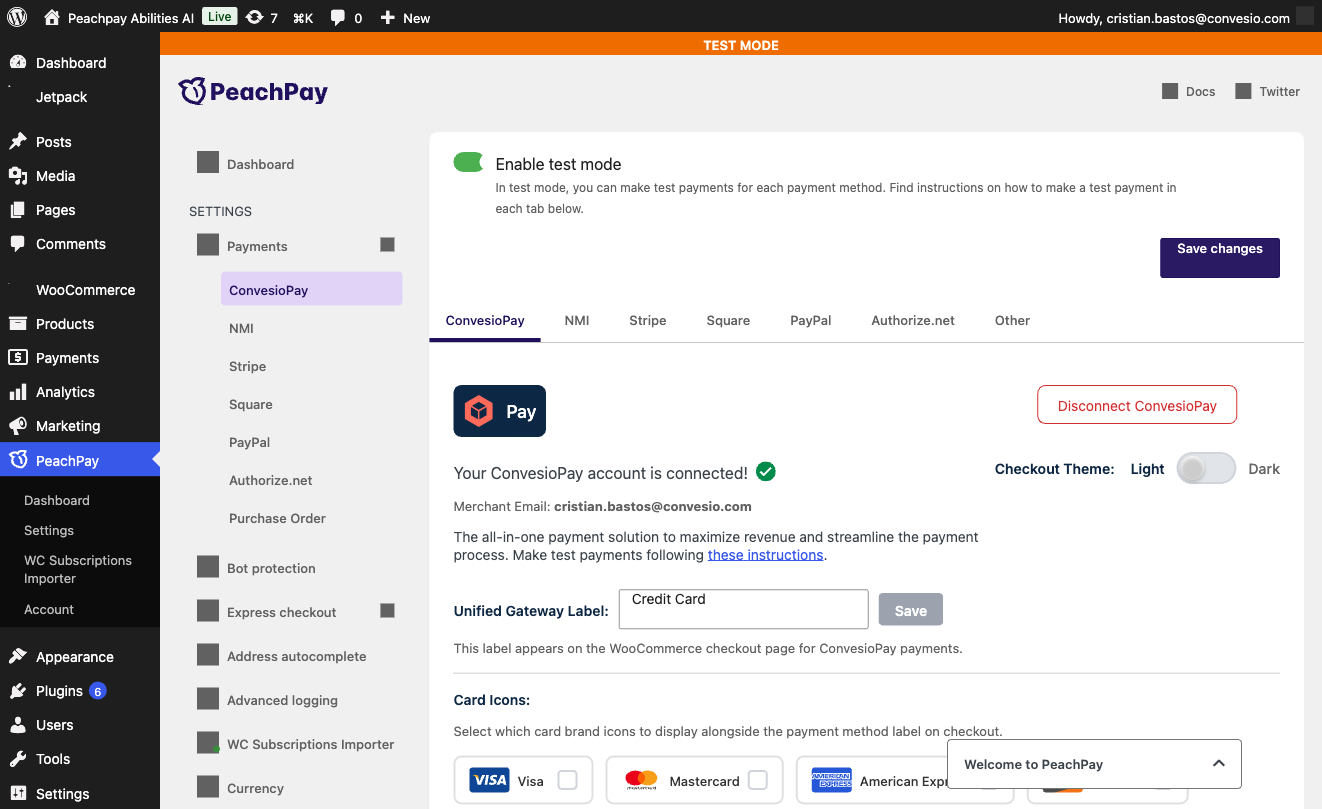
- In WordPress, go to PeachPay → Settings → Payments → ConvesioPay.
- Click Connect ConvesioPay.
- Log in to your ConvesioPay account and authorize the connection.
- You’ll be redirected back to WordPress — you should see “Your ConvesioPay account is connected!” with a green checkmark.
Step 4: Payment methods enabled at checkout
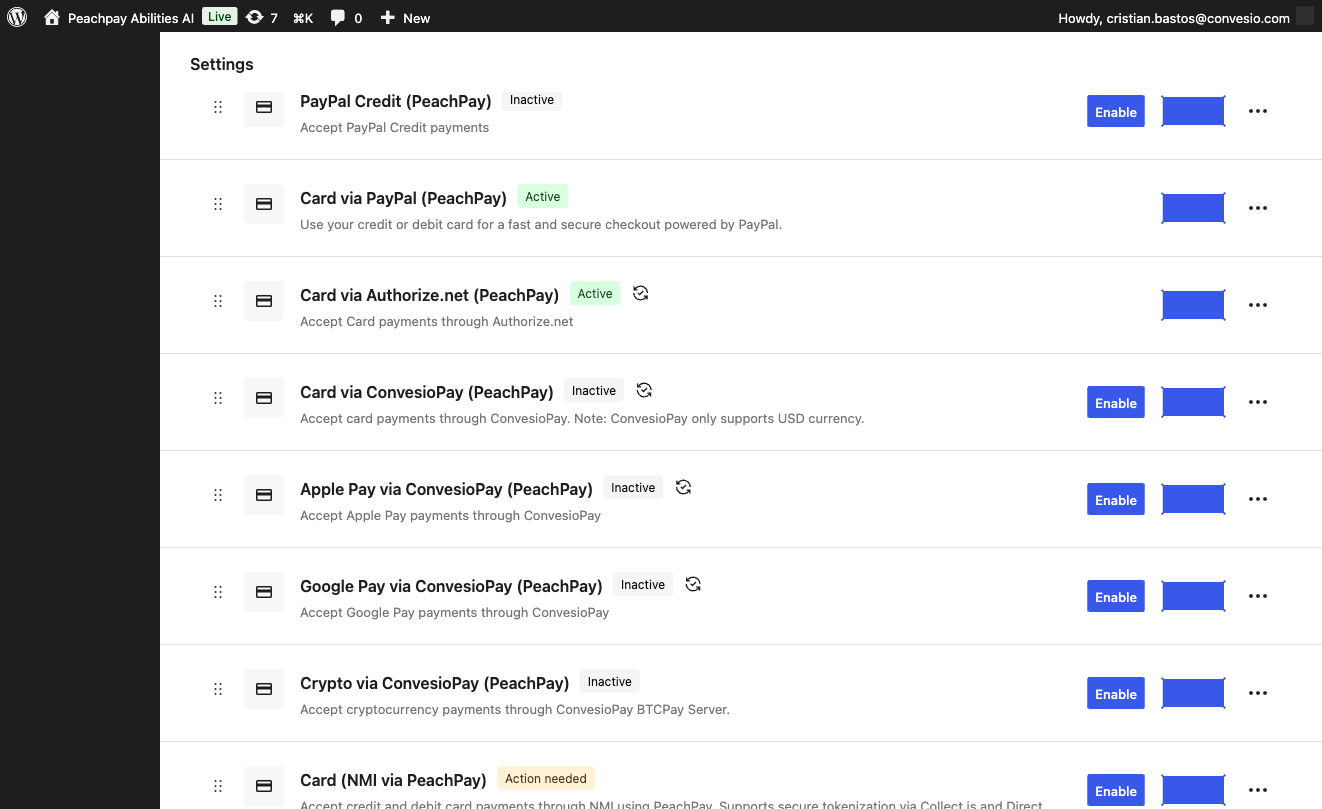
Once connected, ConvesioPay enables the following payment methods in WooCommerce (visible in WooCommerce → Settings → Payments):
- Card via ConvesioPay (PeachPay) — credit/debit card payments
- Google Pay via ConvesioPay (PeachPay) — one-tap Google Pay checkout
- Apple Pay via ConvesioPay (PeachPay) — one-tap Apple Pay checkout
- Crypto via ConvesioPay (PeachPay) — Bitcoin via BTCPay (if enabled)
Each method can be enabled or disabled independently. Confirm the ones you want are set to Active.
Step 5: Test a payment
Before going live, run a test checkout:
- Add a low-cost product to your cart.
- Go to checkout and complete a payment.
- Confirm:
- Order status in WooCommerce updates correctly
- Payment appears in ConvesioPay’s transaction log
- Customer and admin email notifications behave as expected
Troubleshooting
ConvesioPay is not showing at checkout
- Confirm the PeachPay plugin is installed and activated in WordPress
- Confirm the gateway is set to Active in WooCommerce → Settings → Payments
- Check for plugin conflicts if another payment plugin is active
“Connect ConvesioPay” button is not working
- Confirm your ConvesioPay account is active
- Try logging out of ConvesioPay and back in before connecting
- Check that your WordPress site is reachable over HTTPS
Google Pay or Apple Pay not appearing
- These use separate gateways in WooCommerce — confirm each one is individually set to Active
- Google Pay requires the Orchestration Layer to be enabled on your account
How to disconnect ConvesioPay
- In WordPress, go to PeachPay → Settings → Payments → ConvesioPay.
- Click Disconnect ConvesioPay.
- To fully remove, go to Plugins and deactivate the PeachPay plugin.