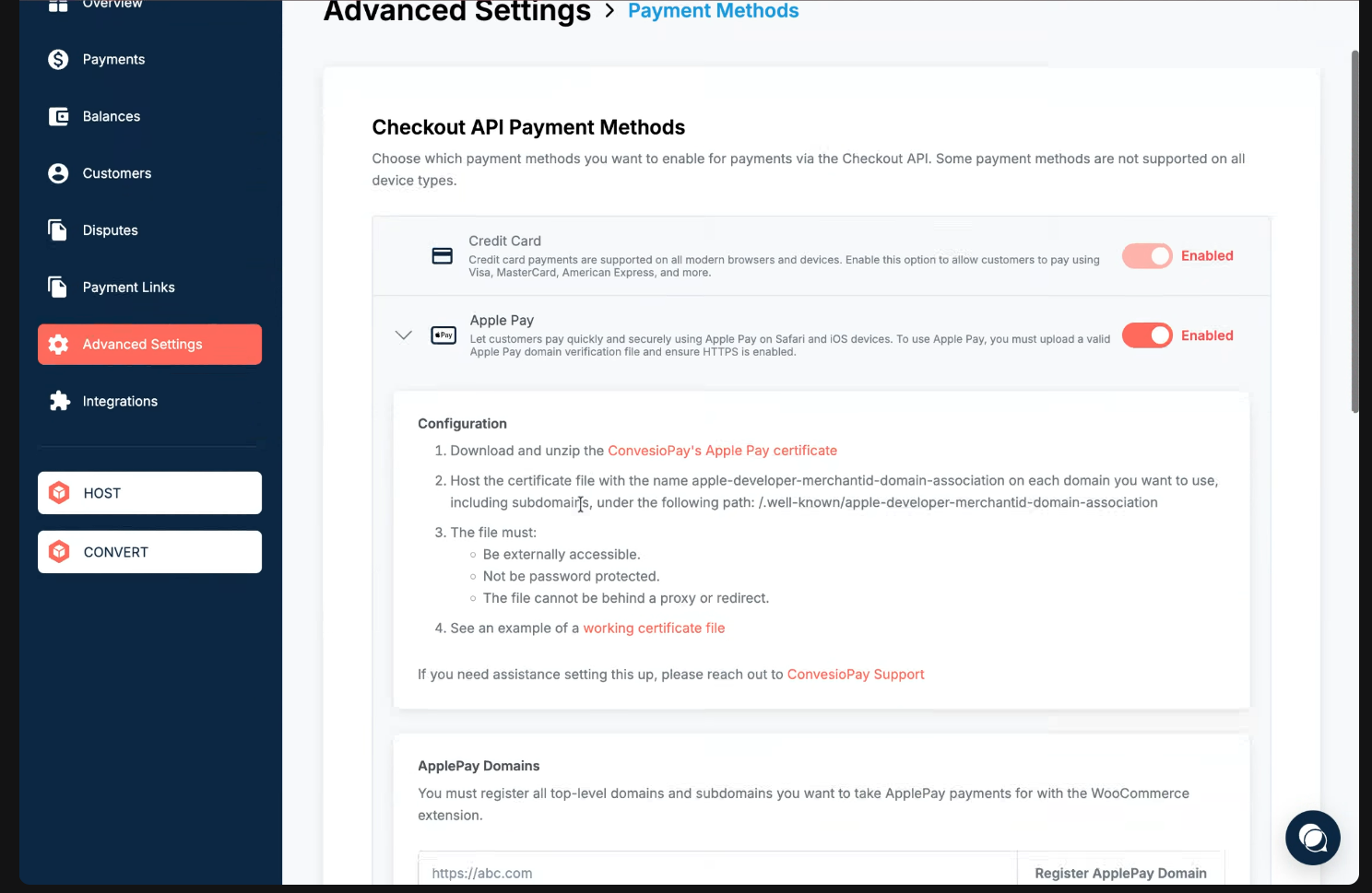
Step 1: Enable Apple Pay
- Go to Advanced Settings.
- Open Payment Methods.
- Toggle Apple Pay on.
Step 2: Add the certificate file
- Upload the Apple Pay certificate file to your site at the required path.
- Use the example certificate as a reference if needed.
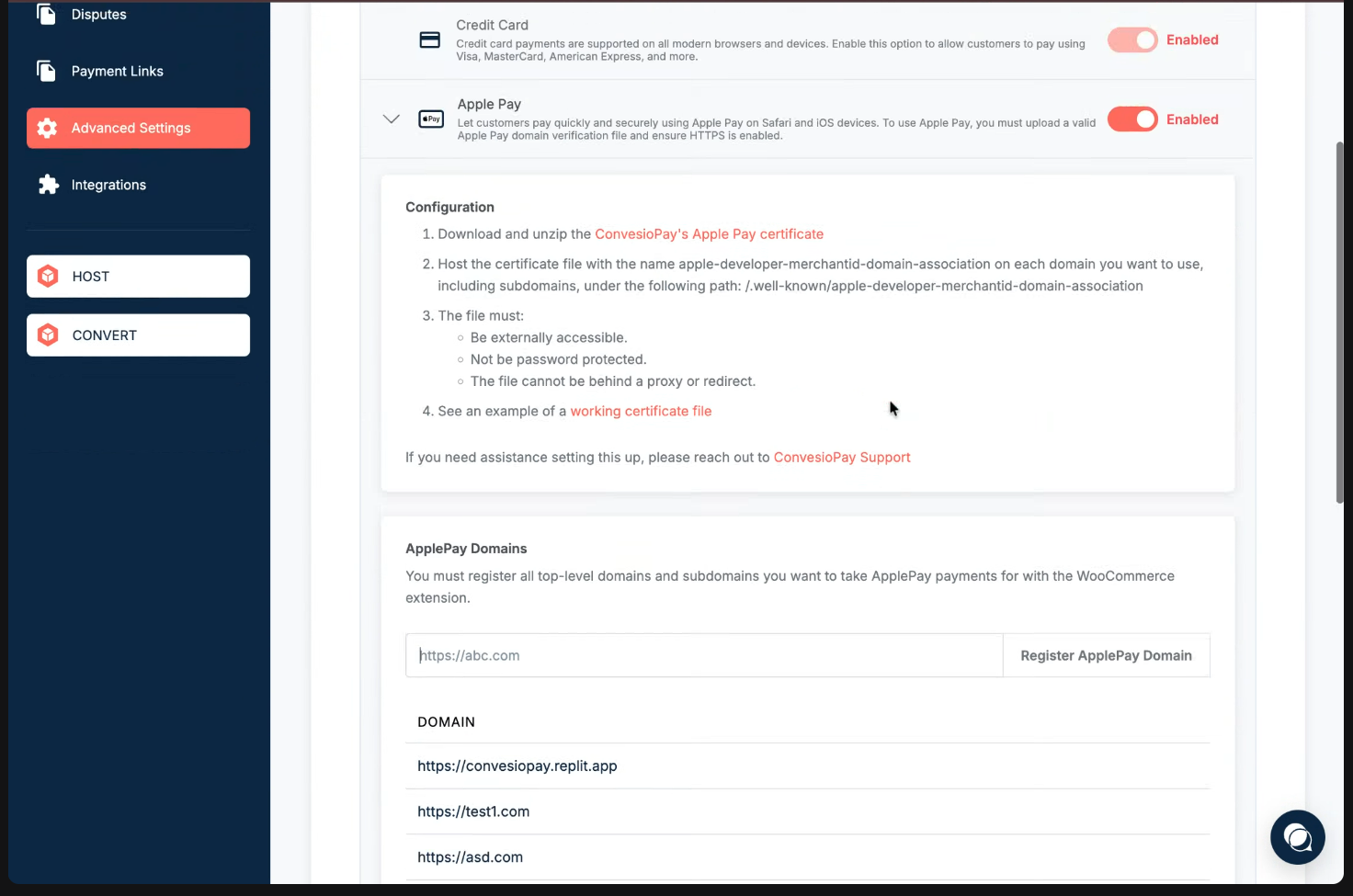
Step 3: Register your domain
- Enter your domain in the Apple Pay settings.
- Complete the domain registration.
Step 4: Enable at checkout
- If using PeachPay or WooCommerce, enable Apple Pay in your checkout settings after configuration.